Detailed Introduction to mxcad Configuration Properties for CAD Projects
Preface
mxcad enables direct online preview and editing of CAD drawings. Users can choose different implementation methods according to their project requirements, such as using mxcad via Vite, CDN, webpack, etc. After successfully creating an mxcad object, during subsequent development, we may encounter a series of configuration needs such as setting drawing operation habits, monitoring the complete opening of drawings, and enabling multiple selection of drawings. To facilitate user operations, mxcad has implemented the above-mentioned class configuration-related method or property APIs internally. Users can customize relevant configurations to meet their project requirements. Next, I will introduce in detail the configuration properties related to drawing operations in mxcad.
If you are unclear about the specific method of implementing online preview and editing of CAD drawings with mxcad, you can refer to the more detailed mxcad development documentation: https://www.mxdraw3d.com/mxcad/en/
Configuration Properties
mxcad allows direct setting of configuration properties during initialization. The properties configured when creating the mxcad object will serve as the default settings for CAD project loading. Below is an example of creating an mxcad object and setting initial properties in a project built with vue3+ts.
1. createMxCad()
When creating an mxcad object, configuration properties can be set within the createMxCad() method.
import { onMounted } from "vue";
import { createMxCad } from "mxcad";
onMounted(() => {
  const mode = "SharedArrayBuffer" in window ? "2d" : "2d-st";
  createMxCad({
    canvas: "#myCanvas",
    locateFile: (fileName) => {
      return new URL(
        `../../node_modules/mxcad/dist/wasm/${mode}/${fileName}`,
        import.meta.url
      ).href;
    },
    fileUrl: new URL("../../public/test2.mxweb", import.meta.url).href,
    fontspath: new URL("../assets/fonts", import.meta.url).href
  });
});
Necessary initial properties in the createMxCad method:
- canvas: The ID name of the canvas instance.
- locateFile: The wasm file (compiled from c++) in the corresponding category (
2d|2d-st) under the/mxcad/dist/wasmdirectory in the mxcad library, which is the core dependency of mxcad. The2ddirectory contains multi-threaded programs, and the2d-stdirectory contains single-threaded programs. This parameter is used to specify the network path of the wasm program. - fontspath: Specifies the loading path of font files in CAD drawings. The default path is
dist/fonts, and you can add various font files required to open drawings in this directory. - fileUrl: Specifies the network path of the mxweb drawing to be opened.
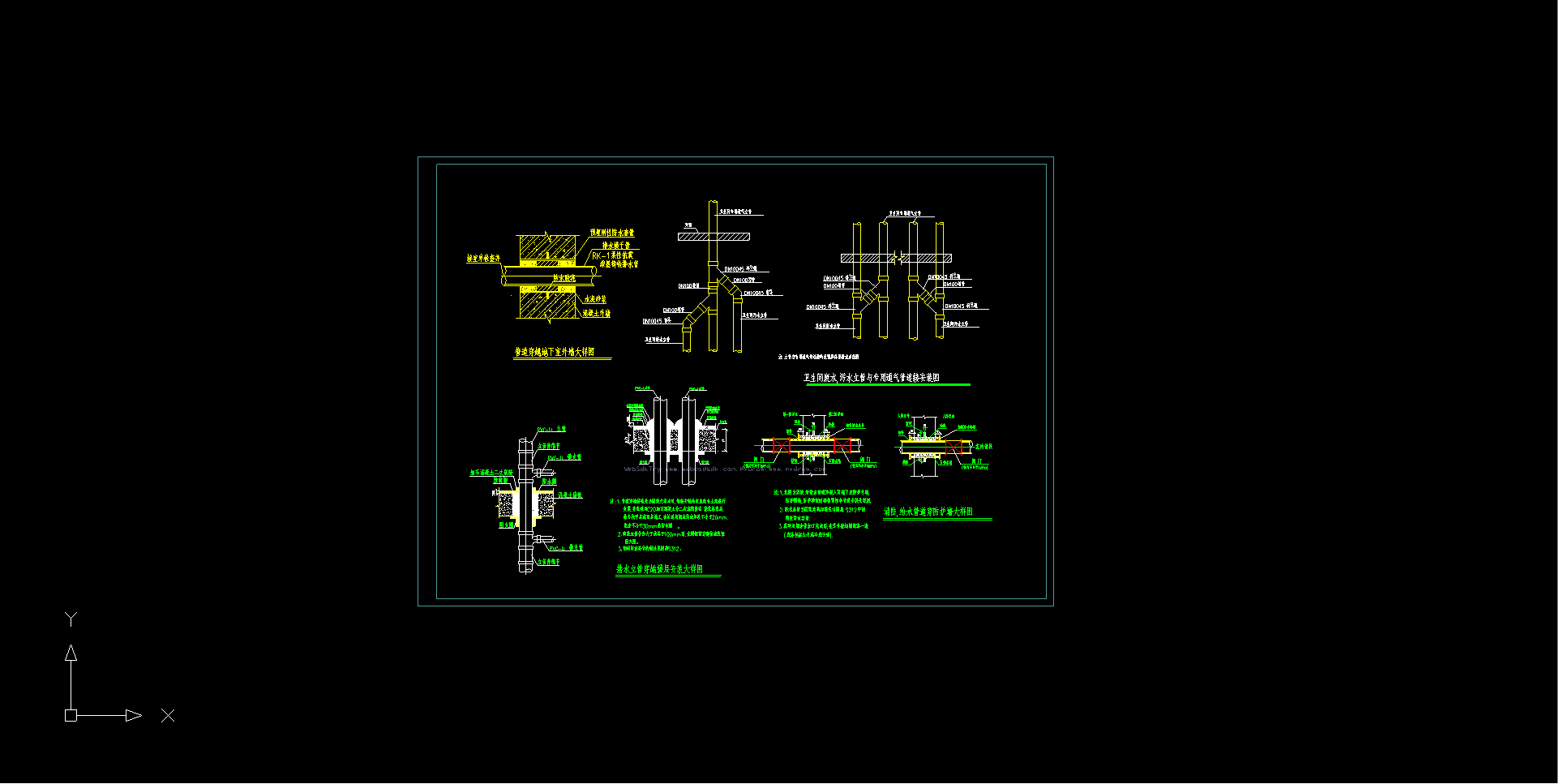
Initial running effect demonstration:
Other properties:
openParameter: Sets parameters for opening files, such as whether to use caching when opening files, or whether to use worker threads to open files, etc.
ts// Set not to use cache when opening files openParameter:{fetchAttributes:FetchAttributes.EMSCRIPTEN_FETCH_LOAD_TO_MEMORY}onOpenFileComplete: Listens to the callback event of successful file opening. Operations to be performed after the drawing is fully opened can be executed within this method.
ts// Output information in the console after the drawing is fully opened onOpenFileComplete:()=>{ console.log('The drawing is fully opened!') }viewBackgroundColor: Sets the background color of the viewport, with values in RGB format.
ts// Set the background color of the initially opened drawing to white viewBackgroundColor:{red:255,green:255,blue:255}browse: Whether to set to browse mode. When the value is true or 1, browse mode is enabled, and CAD objects cannot be selected; when the value is 2, browse mode is enabled, CAD objects can be selected but cannot be grip-edited; when the value is false, edit mode is enabled.
ts// Enable browse mode, CAD objects in the drawing cannot be selected or edited browse:true /** or browse:1 */ts// Enable browse mode, CAD objects can be selected to display grips but cannot be grip-edited browse:2ts// Edit mode, all CAD objects in the drawing can be selected and edited browse:falsemiddlePan: Sets the operation mode for moving the viewport. Set to 0 to move the viewport by clicking the left mouse button; set to 1 to move the viewport by clicking the middle mouse button; set to 2 to move the viewport by clicking either the middle or left mouse button.
ts// Move the viewport by clicking the middle mouse button middlePan:1 // middlePan:2 // middlePan:0enableUndo: Whether to enable the undo function. Set to true to call the Mx_Undo command to undo operations; set to false to disable the undo command. The default setting is false.
ts// Enable the undo function enableUndo:trueenableIntelliSelect: Whether to enable the object selection function. Set to true to enable; set to false to disable.
ts// Enable the object selection function enableIntelliSelect:truemultipleSelect: Whether to enable multiple selection. Set to true to enable; set to false to disable.
ts// Enable multiple selection multipleSelect:true
For more property settings within the createMxCad method, refer to: https://www.mxdraw3d.com/mxcad/en/api/interfaces/2d.MxCadConfig.html
2. MxFun.setIniset()
Since mxcad relies on mxdraw to display drawings, mxdraw also provides a method to implement various initial configurations: MxFun.setIniset(). We can configure more initial settings for CAD projects in this method. Its calling method is as follows:
import { MxFun } from "mxdraw"
MxFun.setIniset({
    // Enable grip editing function, enable single selection of graphics (enabled by default in mxcad)
    "EnableGripEdit": true,
    // Enable multiple selection
    "multipleSelect": true
    /**
     * ......More iniConfig parameters can be configured
     */
})
Common iniConfig parameters:
EnableIntelliSelect: Whether to enable intelligent selection. Set to true to enable; set to false to disable.
ts// Enable intelligent selection EnableIntelliSelect:trueEnableGripEdit: Whether to enable grip editing. Set to true or 1 to enable, set to 0 or false to disable, set to 2 to display grips after selecting an object but not respond to grip editing.
ts// Enable grip editing EnableGripEdit:truemultipleSelect: Whether to enable multiple selection. After enabling multiple selection, users can select multiple entities at a time. Set to true to enable; set to false to disable, and its default value is false.
ts// Enable multiple selection - window selection multipleSelect:trueIntelliSelectType: Control of multiple selection mode. Set to 1: multiple selection is allowed, but continuous multiple selection is not supported; set to 2: multiple selection is allowed, and continuous multiple selection is supported. The default value is 1. This setting takes effect only when multiple selection is enabled first.
ts// Multiple selection mode allows continuous point selection IntelliSelectType:2autoResetRenderer: Whether to enable automatic reset of the renderer. Set to true to enable; set to false to disable.
ts// Enable automatic reset of the renderer autoResetRenderer:trueForbiddenDynInput: Whether to disable the dynamic input box. Set to true to disable; set to false to enable.
ts// Disable the dynamic input box ForbiddenDynInput:trueinputRectWidth: Sets the width of grips and pickboxes, in pixels on the screen.
ts// Set the grip width to 5px inputRectWidth:5gripPointColor: Sets the color of grips, with values in hexadecimal color format, such as: 0xFFFFFFFF, 0xNRGB, etc.
ts// Set the grip color to white gripPointColor:0xFFFFFFFFEnableDrawingViewAngle: Whether to use the viewport angle settings in the drawing, the default is true.
ts// Do not use the viewport angle in the drawing EnableDrawingViewAngle:false
For more property settings within the MxFun.setIniset() method, refer to: https://mxcad.github.io/mxdraw/api/interfaces/iniConfig.html
3. McObject Object Method APIs
In addition to the two methods introduced above, the McObject object in mxcad also provides methods to set configuration parameters for CAD projects. Below are examples of several commonly used setting methods:
McObject.setBrower(): Whether to set to browse mode.
tsimport { MxCpp } from 'mxcad'; // Set to browse mode MxCpp.getCurrentMxCAD().setBrowse(true); // Set to edit mode MxCpp.getCurrentMxCAD().setBrowse(false);McObject.setViewBackgroundColor(): Sets the background color of the viewport.
tsimport { MxCpp } from 'mxcad'; // Set the viewport background color to white, with values in RGB MxCpp.getCurrentMxCAD().setViewBackgroundColor(255,255,255);McObject.setAttribute(): Sets some property settings of the mxcad object.
tsimport { MxCpp } from 'mxcad'; MxCpp.getCurrentMxCAD().setAttribute({ // Enable undo function EnableUndo:true, // Display precision setting, default is 0, can take values from 0 ~ 1000, 1000 is the highest precision DisplayPrecision:1000 });
For more McObject method settings, refer to: https://www.mxdraw3d.com/mxcad/en/api/classes/2d.McObject.html
Online Demonstration
To facilitate viewing the setting effects, users can directly run the settings in the editor of our provided online demo to view real-time effects.
Online demo address: https://www.webcadsdk.com/mxcad/
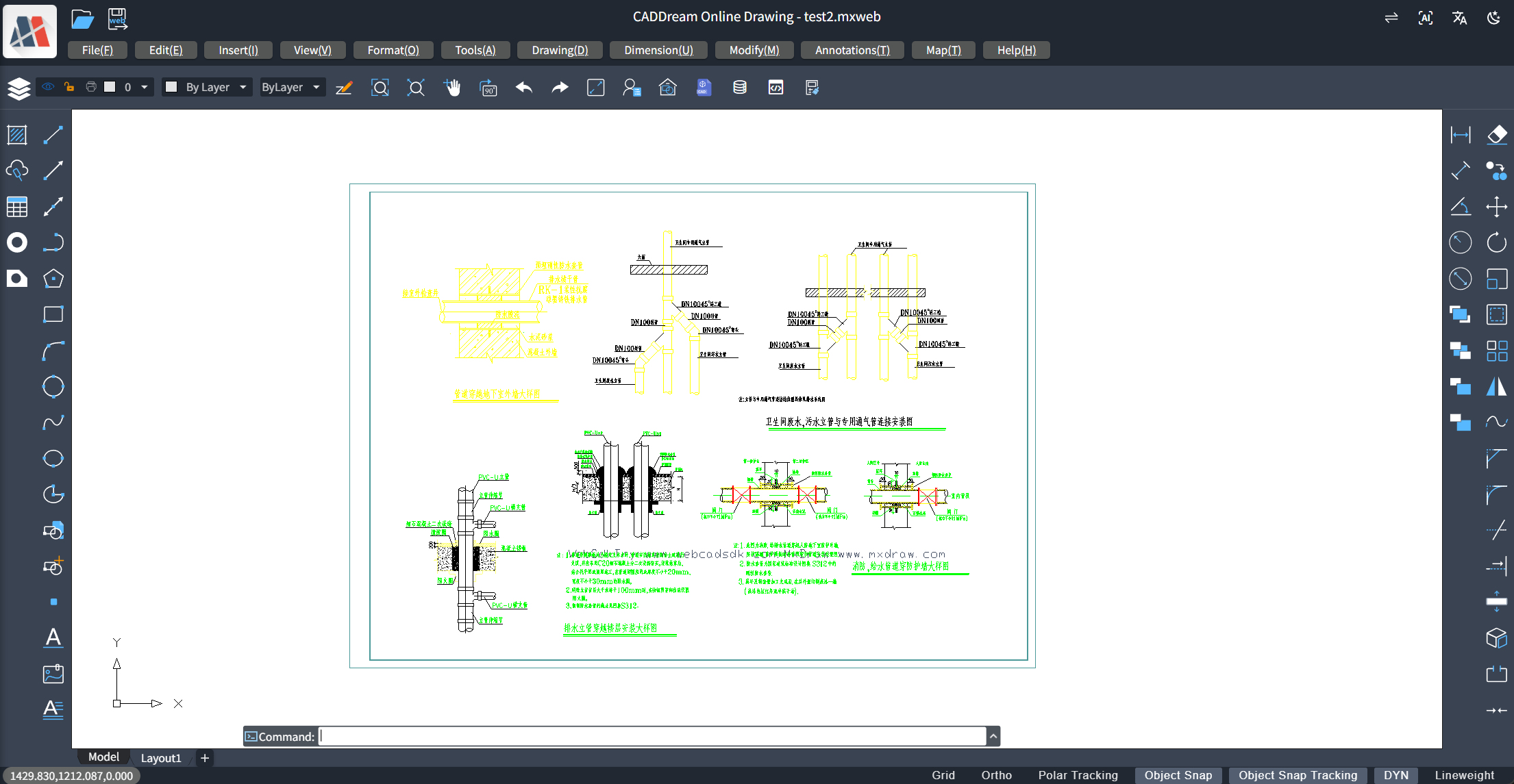
Real-time running effect demonstration:
import { MxCpp } from 'mxcad';
// Set the viewport background color to white, with values in RGB
 MxCpp.getCurrentMxCAD().setViewBackgroundColor(255,255,255);