
Practical Guide to Drawing Saving and Data Persistence
1. Introduction: From Temporary Drawing to Data Archiving
After completing the full-process exploration of environment setup, view control, command-line driving, and drawing editing, data persistence has become a key link in building a complete engineering design system. In engineering practice, drawings not only need to be rendered in real-time in the browser but also require the modified data to be securely transmitted back to the server or converted into universal formats (such as DWG, PDF) for archiving.
The saving mechanism of MxCAD is not a simple file download, but a complex process based on frontend-backend collaboration. This article will deeply analyze this process to help developers build a complete cloud-based design closed loop.
2. Core Principles: Architectural Logic of Cloud Drawing Development Kit
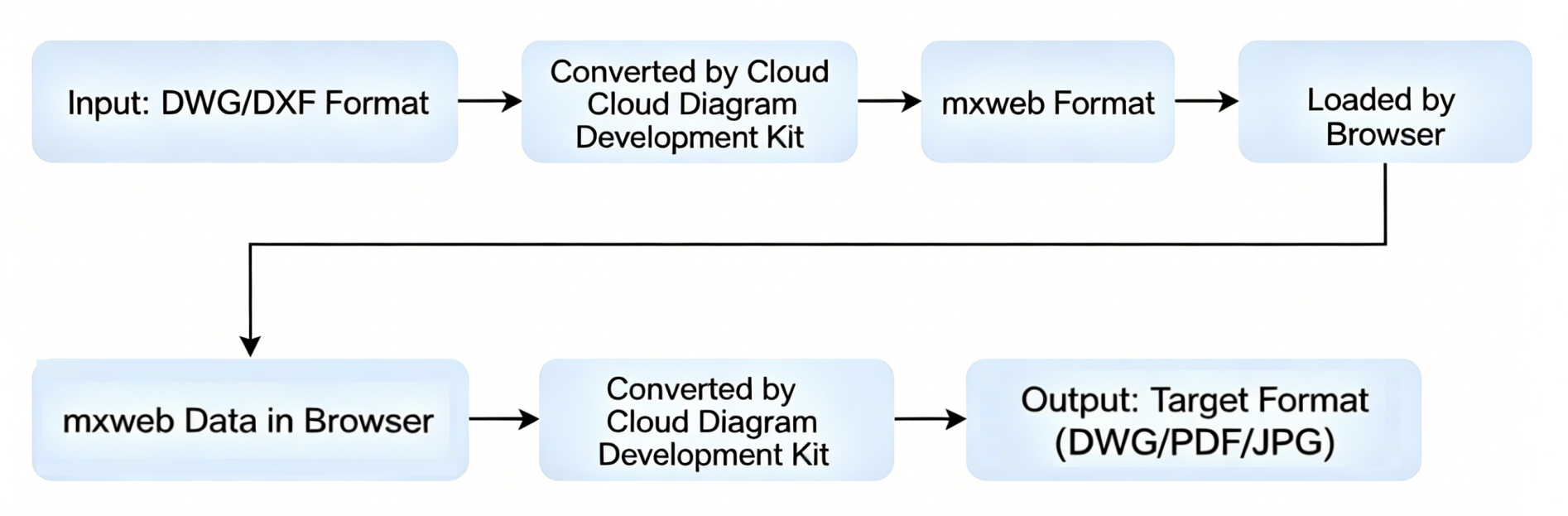
Before delving into the code, it is essential to clarify the file architecture logic of MxCAD. To achieve high-performance rendering on the Web side, MxCAD adopts the proprietary mxweb format as the core data carrier.
Core Logic: JavaScript in the browser cannot directly convert graphic data into the complex AutoCAD DWG format. Therefore, the essence of saving a drawing is to upload the frontend mxweb data to the server, where the server-side conversion engine (cloud drawing development kit) restores and transcodes it into a standard format.
This process follows the architectural idea of the frontend is responsible for interaction and display, and the backend is responsible for storage and transcoding.
3. Detailed Explanation of Practical Steps
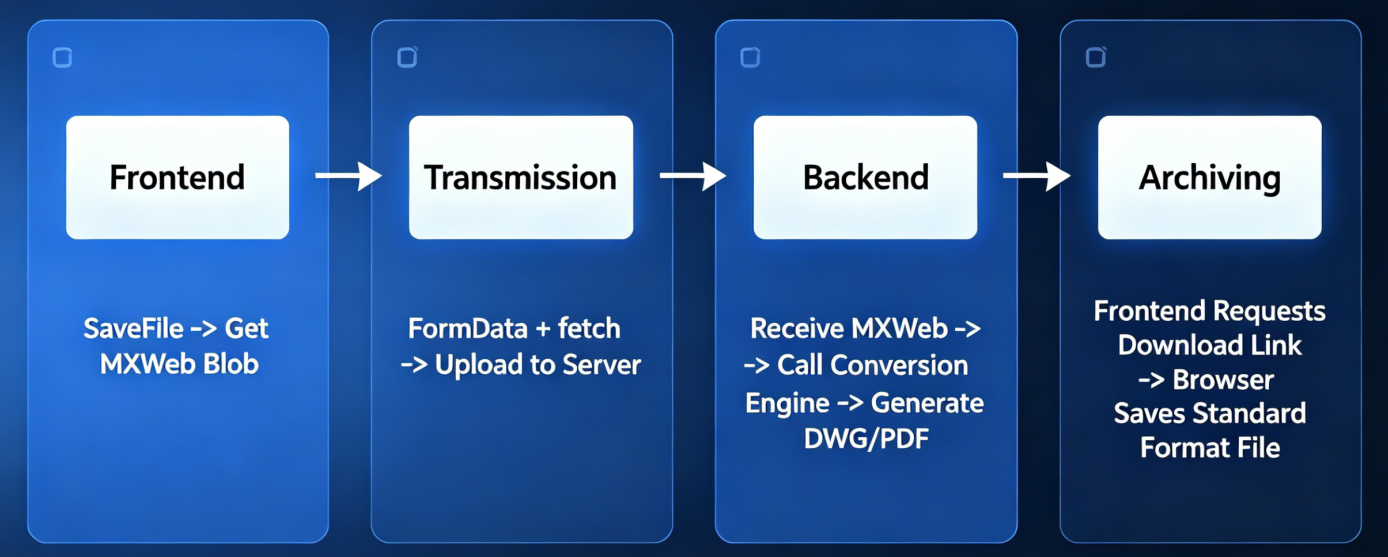
The complete drawing saving process is divided into four standard steps: frontend serialization, data upload, backend transcoding, and frontend download.
3.1 Step 1: Frontend Serialization (Generate mxweb)
In the MxCAD architecture, the frontend is the entry point for user interaction, and all operations such as drawing, editing, and layer management are performed in the browser memory. To persist these dynamic data, the first step is to take a snapshot of the current drawing environment.
The MxCpp.getCurrentMxCAD().saveFile() method is the core API provided by MxCAD, which is used to serialize all graphic data, layer states, view configurations, and other information in the current drawing area into binary data in the mxweb format. mxweb is a proprietary format optimized by MxCAD for the Web environment, which is lightweight, efficient, and can be quickly parsed and rendered by the browser.
saveFile(
  filename?: string,
  call?: (data: any) => void,
  isDownland?: boolean,
  isShowSaveFileDialog?: boolean,
  parameter?: object
): boolean;
API Parameter Description:
filename: Optional parameter to specify the name of the saved file. If not provided, the system will use the current file name or a default name.call: Optional callback function. After the file is saved, this function will be called, and the parameterdatacontains the serialized file data (usually ArrayBuffer or Blob).isDownland: Boolean value, default istrue. Iftrue, the browser download will be triggered automatically after saving; iffalse, only data is generated without triggering download, which is suitable for subsequent upload to the server.isShowSaveFileDialog: Boolean value, default istrue. Iftrue, a system save dialog will pop up for the user to select the save location; iffalse, silent saving is performed, which is suitable for automated processes.parameter: Optional object used to pass additional parameters, such as custom metadata, version number, etc.
Code Example 1: Directly Download the Drawing File on the Current Interface
import {  MxCpp } from "mxcad"

const btn = document.createElement("button")
btn.addEventListener("click",()=>{
    MxCpp.getCurrentMxCAD().saveFile(void 0, void 0, true, true, { compression: 0 })
})
document.body.appendChild(btn)
Code Example 2: Get the Drawing Blob Object
import { MxCpp } from "mxcad";

MxCpp.getCurrentMxCAD().saveFile(
  void 0,
  (data) => {
    // Handle Safari compatibility
    let isSafari = /^((?!chrome|android).)*safari/i.test(navigator.userAgent);
    let blob = new Blob([data.buffer], {
      type: isSafari ? "application/octet-stream" : "application/octet-binary"
    });
    // Call the upload function
    uploadFileToServer(blob);
  },
  false, // Do not trigger download
  false, // Silent save
  { compression: 0 } // No compression
);
3.2 Step 2: Upload to Backend (Data Transmission)
After the frontend obtains the Blob, it needs to be transmitted to the server via the HTTP protocol.
Transmission Logic: Use FormData to encapsulate file data, and send a POST request via fetch or axios.
Code Example: Standard Upload Logic
const uploadFileToServer = async (fileData, fileName) => {
  const formData = new FormData();
  formData.append("file", fileData, fileName); // Encapsulate file
  formData.append("bizId", "project_12345"); // Carry business parameters

  try {
    const response = await fetch("http://localhost:1337/api/upload", {
      method: "POST",
      body: formData,
    });
    const result = await response.json();
    console.log("Upload successful, server returns path:", result.filePath);
    return result.filePath;
  } catch (error) {
    console.error("Upload failed:", error);
  }
};
3.3 Step 3: Backend Transcoding (Format Conversion)
After the backend receives the .mxweb file, it needs to call the local MxCAD conversion service (such as mxcadassembly) for headless conversion.
Core Conversion Process:
Locate the file: Obtain the temporary storage path of the
.mxwebfile uploaded by the frontend on the server.Build the command: Assemble the conversion command, specifying the input file (source), output file (target), and target format (such as DWG, PDF).
Execute the conversion: Call the conversion engine through a child process.
Take converting to DWG drawing format as an example:
The command format is
./mxcadassembly '{"srcpath":"input path","outpath":"output directory", "outname":"file name"}'.Node.js backend core snippet:
const { exec } = require('child_process');
const path = require('path');

function convertMxWebToDwg(mxwebFilePath, outputDwgPath, response) {
  const converterPath = '/path/to/mxcadassembly'; // Path to the conversion tool

  // Build parameter object
  const params = {
    srcpath: mxwebFilePath,
    outpath: path.dirname(outputDwgPath),
    outname: path.basename(outputDwgPath, '.dwg'),
    compression: 0
  };

  // Assemble the command (note the single quotes outside the JSON string)
  const command = `"${converterPath}" '${JSON.stringify(params)}'`;

  console.log("Executing command:", command);

  // Execute conversion
  exec(command, (error, stdout, stderr) => {
    if (error) {
      return response.json({ ret: 'ConvertFailed', error: error.message });
    }

    try {
      const result = JSON.parse(stdout.trim());
      if (result.code === 0) {
        response.json({
          ret: 'Ok',
          file: `/mxcad/file/${path.basename(outputDwgPath)}`
        });
      }
    } catch (e) {
      response.json({ ret: 'Error', message: 'Parsing failed' });
    }
  });
}Note: The backend transcoding service usually relies on the Windows environment or a specific Linux container environment, and requires the installation of corresponding MxCAD server-side components.
3.4 Step 4: Frontend Download (Local Archiving)
When the backend completes the conversion, the file has been converted into the .dwg or .pdf format familiar to users. At this point, the frontend only needs to provide a file access entry to allow users to download these standard files to the local for archiving, completing the operation closed loop.
Although the saveFile method itself supports direct download (isDownland: true), in the above upload-transcoding process, download is usually an independent subsequent operation and therefore needs to be completed in conjunction with the overall process.
4. Quick Implementation Based on Node Service
If you do not want to build the backend from scratch, you can directly use the conversion service preset in the MxCAD cloud drawing development kit.
4.1 Quick Start
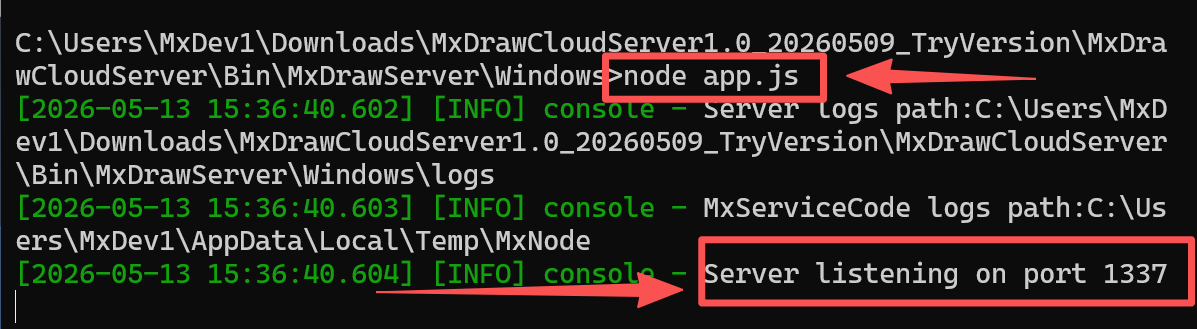
Download and unzip the MxCAD cloud drawing development kit.
Enter the directory:
MxDrawCloudServer/Bin/MxDrawServer/Windows.Start the service: Execute
node app.jsin the terminal.Port: The service listens on port
1337by default.
4.2 Core Interface Quick Reference
After starting the service, you only need to call the built-in interfaces of the service in conjunction with the saveFileToUrl method to complete the saving, without manually handling the tedious details of upload and transcoding. Examples of interfaces are as follows:
| Target Format | Interface | Description |
|---|---|---|
| DWG | http://localhost:1337/mxcad/savedwg | Save as AutoCAD format |
http://localhost:1337/mxcad/savepdf | Save as PDF document | |
| JPG | http://localhost:1337/mxcad/convert/cad2jpg | Only supported on Windows, save as image |
| MXWEB | http://localhost:1337/mxcad/savemxweb | Save as MxCAD proprietary format |
4.3 Core API: saveFileToUrl
saveFileToUrl is the core API encapsulated in the MxCAD cloud drawing development kit, used to asynchronously transmit the current drawing data to the specified backend service address. The power of this interface lies in its versatility: users do not need to write complex upload logic, and only need to pass in different backend interface URLs according to requirements to achieve export to different formats such as DWG, MXWEB, or PDF.
saveFileToUrl(
    sSaveProgramUrl: string,
    call: (iResult: number, sServerResult: string) => void,
    filename?: string,
    param?: any
): boolean;
API Parameter Description:
sSaveProgramUrl: Target backend interface address. This is the key to determining the file save format.
call: Callback function. Used to receive the servers response.
filename: Specify the name of the saved file (optional).
param: Additional JSON parameters (such as width and height settings for PDF).
Call Example 1: Save as DWG
import { MxCpp } from "mxcad"

// 1. Get the current MxCAD object
const mxcad = MxCpp.getCurrentMxCAD()

// 2. Call the interface, passing in the backend address for saving DWG
mxcad.saveFileToUrl("http://localhost:1337/mxcad/savedwg", (iResult, sServerResult) => {
    // 3. Process the server return result
    if (iResult === 0) {
        // sServerResult is the JSON string returned by the server
        // Structure example: { "ret": "ok", "file": "test.dwg" }
        const retData = JSON.parse(sServerResult);

        if (retData.ret === "ok") {
            console.log("File saved successfully, server path:",
                        `http://localhost:1337/mxcad/file/${retData.file}`);

            // At this time, retData.file is the access path (relative path or full URL) of the saved file
            // Developers can use it for subsequent file download or archiving logic
        }
    } else {
        console.error("File upload failed");
    }
});
Call Example 2: Save as PDF with Parameters
If you need to save as PDF and specify the drawing size, you can pass the configuration through the fourth parameter param:
import { MxCpp } from "mxcad"

const mxcad = MxCpp.getCurrentMxCAD()

// Pass the fourth parameter JSON.stringify({ width: "2000", height: "2000" }) to set the PDF size
mxcad.saveFileToUrl(
    "http://localhost:1337/mxcad/savepdf",
    (iResult, sServerResult) => {
        const ret = JSON.parse(sServerResult);
        if (ret.ret === "ok") {
            // Get the generated PDF download link
            const pdfUrl = "http://localhost:1337/mxcad/file/" + ret.file;
            console.log("PDF generated successfully:", pdfUrl);
        }
    },
    "my_drawing", // File name
    JSON.stringify({ width: "2000", height: "2000" }) // Additional parameters
);
4.3 File Storage Path Management
By default, the converted files are stored in the public/mxcad/file/ directory of the cloud drawing development kit.
Access address:
http://localhost:1337/mxcad/file/filenamePath modification: To change the storage location, edit the
uploadPathfield in theini.jsconfiguration file
// Modify the ini.js file under MxDrawCloudServer\Bin\MxDrawServer\Windows
this.mxcad = {
    uploadPath: "./public/mxcad/file/", // Modify here to your custom path
    mxbinPath: "../../MxCAD/Release/"
};
5. Summary
This article elaborates on the four-step strategy for MxCAD drawing saving.
The core is to understand:
The frontend is responsible for interaction and display, generating lightweight
mxwebdata.The backend is responsible for storage and transcoding, using the engine to restore
mxwebto a standard format.
By using the Node service provided by the cloud drawing development kit, developers can skip the complex underlying conversion logic and quickly implement export to formats such as DWG and PDF. So far, we have covered the complete life cycle from viewing drawings, editing to saving.