
Deep Dive into Web CAD Core: Implementing Professional View Control & Layer Management with MxCAD
Abstract
When building enterprise-level Web CAD applications, view navigation and layer management are two core metrics that define the system's professionalism. Users not only need to smoothly navigate large-format drawings but also require granular control over complex layer systems, similar to the desktop AutoCAD experience.
Based on the MxCAD engine, this article provides an in-depth analysis of how to build a fully functional Layer Property Manager from scratch. It covers everything from low-level database transaction operations to high-level interaction logic, fully reproducing professional features including layer state toggling, attribute editing, batch operations, and search filtering.
Strictly following technical documentation standards, this article focuses on implementation principles and key code logic, providing developers with a set of actionable best practices.
1. Core Architecture & Data Models
1.1 Layer Structure in the CAD Database
In the MxCAD (and AutoCAD kernel-compatible) database architecture, layers do not exist in isolation but are managed as part of the Symbol Table. Understanding this structure is a prerequisite for secondary development.
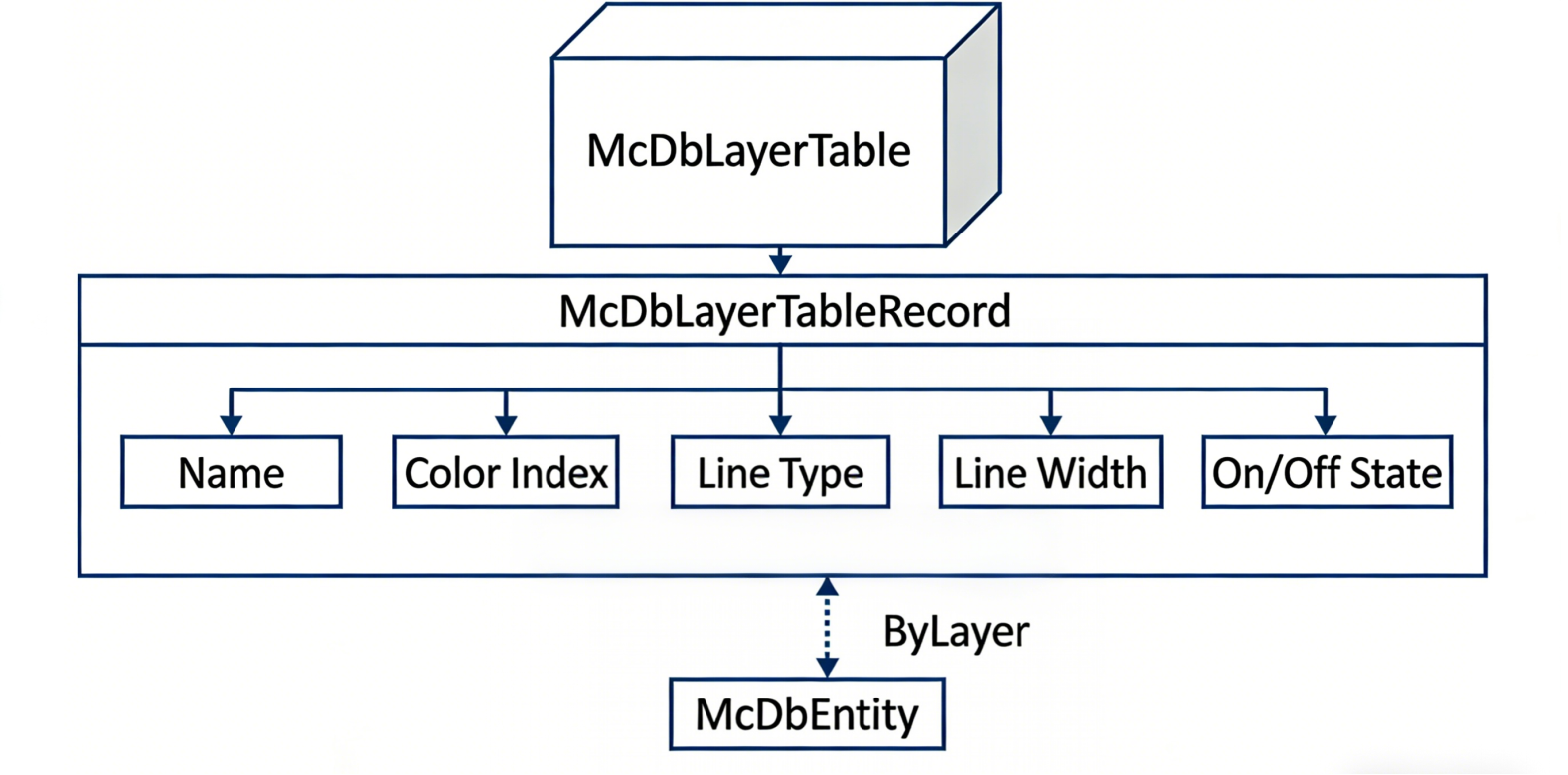
Core Objects
McDbLayerTable(Layer Table): This is the container for all layer definitions in the database. It acts as a dictionary structure, mapping layer names (String) to unique Object IDs (ObjectId). Each database file has exactly one layer table.McDbLayerTableRecord(Layer Record): This is the specific definition object for a layer. It stores all metadata for the layer, including:- Basic Properties: Name, Color, Line Type, Line Weight.
- State Flags: Visibility (
isOff), Freeze State (isFrozen), Lock State (isLocked).
Entity Association Mechanism
Entities reference layer records via layerId to achieve dynamic attribute inheritance.
- Implementation of "ByLayer" Color:
- The entity's color index must be set to
ColorIndexType.kBylayer. - When the layer color changes, the entity color automatically inherits the new layer color.
- If the entity color index is not set to ByLayer (e.g., set to a fixed color), it will not follow layer color changes.
- The entity's color index must be set to
Code Example: Setting Color to ByLayer
import { McCmColor, ColorIndexType } from "mxcad";

const color = new McCmColor();
color.colorIndex = ColorIndexType.kBylayer; // Set color to ByLayer
console.log(color.colorIndex);
Code Example: Setting Entity Fixed Color
import { McDbEntity, McCmColor } from 'mxcad';

const ent = new McDbEntity();
ent.trueColor = new McCmColor(255, 0, 0); // Set fixed color to Red
console.log(ent.trueColor);
1.2 View Management & Display Mechanism
In MxCAD, the core of view control is the MxCAD instance object (obtained via MxCpp.getCurrentMxCAD()). This object maintains the state of the current viewport and is responsible for handling display range, zoom ratio, rotation angle, etc.
2. View Control Module Implementation
View interaction logic is implemented by calling methods on the MxCAD core instance or executing specific command strings, mainly including zoom, pan, rotate, and display style control.
2.1 Zoom All
- Function: Automatically adjusts the view so that all graphical content in the current DWG document is fully displayed within the viewport.
- Logic: Calculates the bounding box of the graphics, then adjusts the view center and zoom ratio to fit the entire bounding box.
import { MxCpp } from "mxcad";

const mxcad = MxCpp.getCurrentMxCAD();
mxcad.zoomAll();
mxcad.updateDisplay();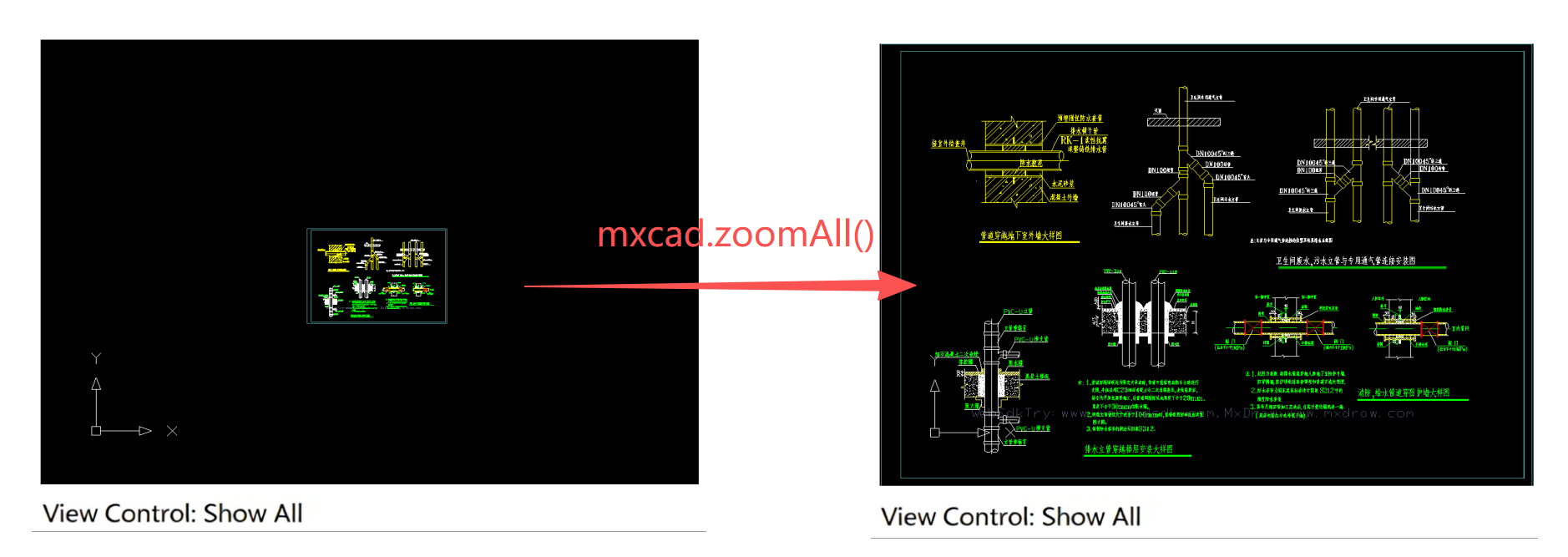
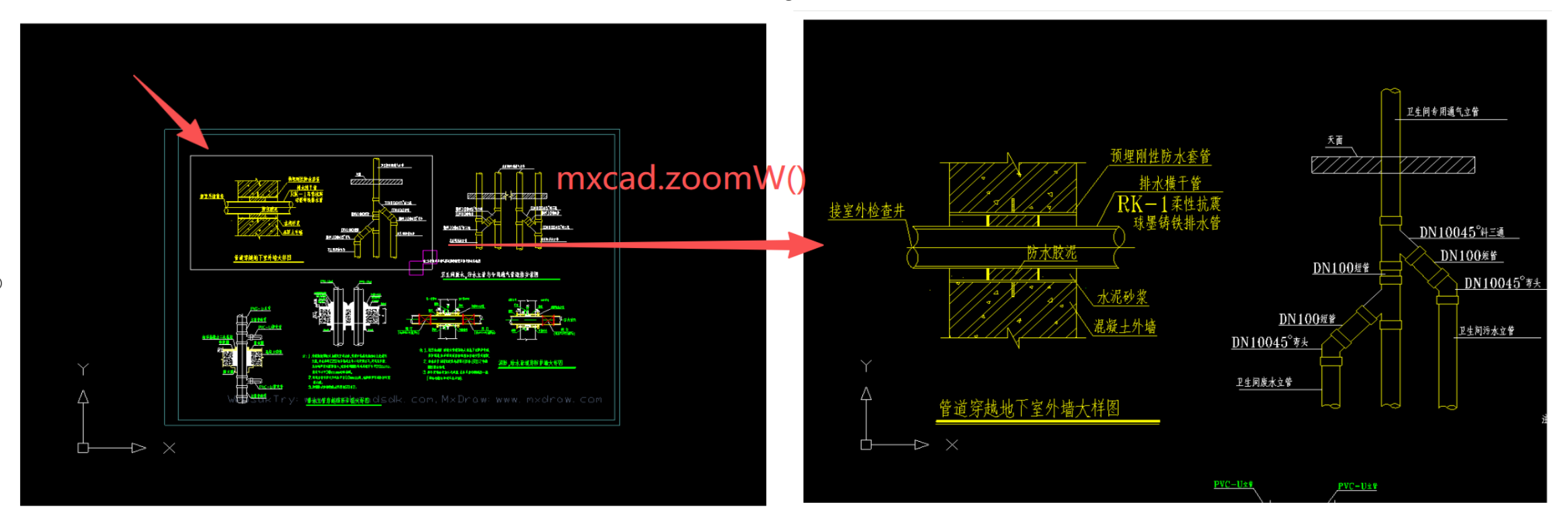
2.2 Zoom Window
- Function: Allows the user to drag a rectangular window with the mouse to zoom into that area.
- Logic: Captures the start and end points of the user's drag rectangle, adjusts the view center to the window center, and zooms to cover that window area.
import { MxCpp, MxCADUiPrPoint, MxCoordConvert } from "mxcad";

async function Mx_WindowZoom() {
  let mxcad = MxCpp.getCurrentMxCAD();
  let getPoint = new MxCADUiPrPoint();
  getPoint.setMessage("Pick zoom area");

  let pt1 = await getPoint.go();
  if (!pt1) return;

  getPoint.setUserDraw((p1, worldDraw) => {
    worldDraw.drawRect(
      MxCoordConvert.cad2doc1((pt1 as any)),
      MxCoordConvert.cad2doc1((p1 as any))
    );
  });

  let pt2 = await getPoint.go();
  if (pt2 == null) return;

  mxcad.zoomW(pt1, pt2);
}
2.3 View Rotation (Zoom Angle)
- Function: Rotates the drawing display around the view center.
- Logic: Calls the
zoomAngle()method, passing the rotation angle parameter (usually in units of PI).
import { MxCpp } from "mxcad";

const mxcad = MxCpp.getCurrentMxCAD();
const lAng = Math.PI * 0.5; // Rotate view 90 degrees
mxcad.zoomAngle(lAng);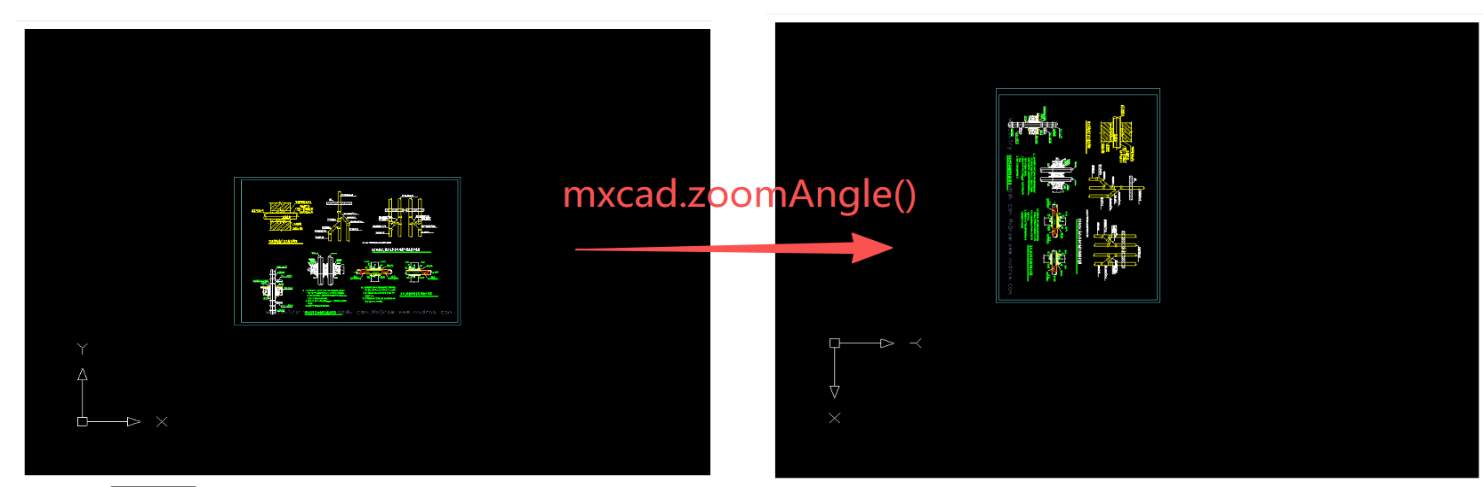
2.4 View Pan
- Function: Moves the display area without changing the zoom ratio.
- Logic: Implemented by sending a command string.
import { MxFun } from "mxdraw";
MxFun.sendStringToExecute("Mx_Pan");
2.5 Black & White Display
- Function: Forces colorful graphics to render in grayscale.
- Logic: Modifies the rendering pipeline shader parameters or sets the graphics display style sheet to black and white mode.
import { MxCpp } from "mxcad";

const mxcad = MxCpp.getCurrentMxCAD();
mxcad.setAttribute({ BlackWhiteDisplay: true });
//mxcad.openWebFile('https://demo2.mxdraw3d.com:3000/mxcad/test3.mxweb');//Reopen the drawing rendering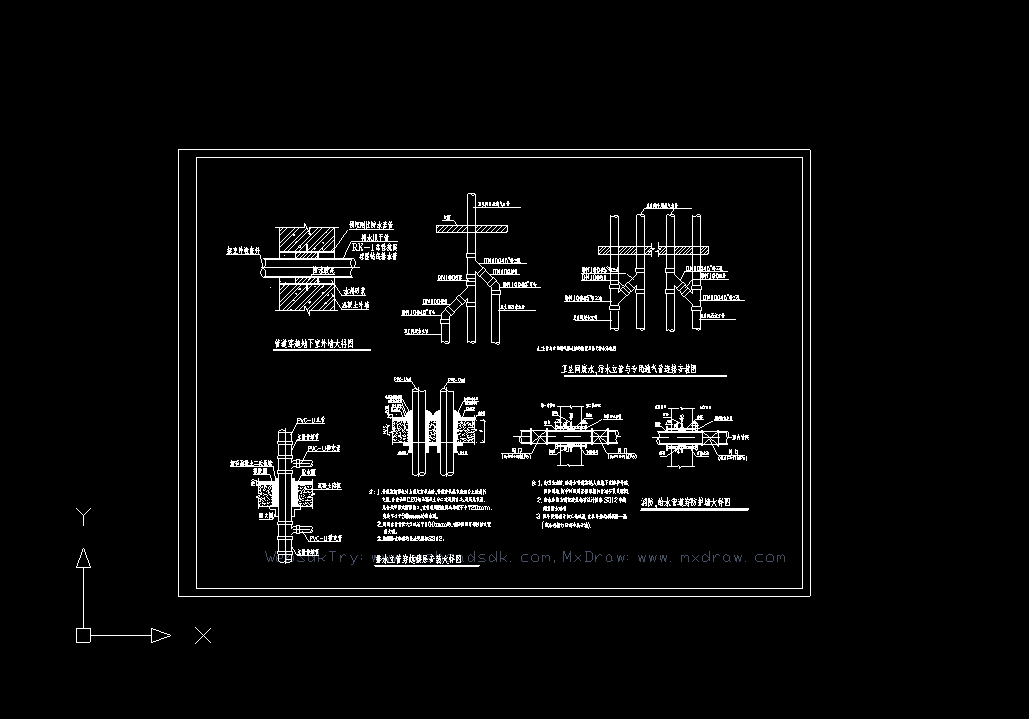
2.6 View Background Color
- Function: Changes the background color of the drawing area.
- Logic: Directly sets the background color attribute of the MxCAD instance.
import { MxCpp } from "mxcad";

const mxcad = MxCpp.getCurrentMxCAD();
mxcad.setViewBackgroundColor(255, 255, 255); // Set to white
mxcad.updateDisplay();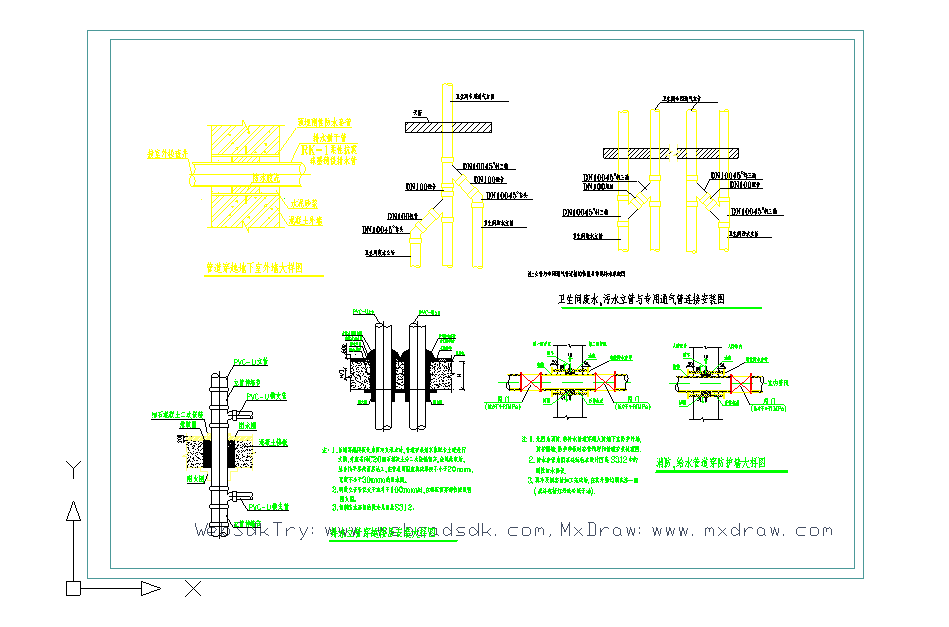
3. Layer Manager Implementation
The Layer Manager is a core auxiliary tool in CAD editors. Based on the McDbLayerTable interface of MXCAD, we can build a complete manager.
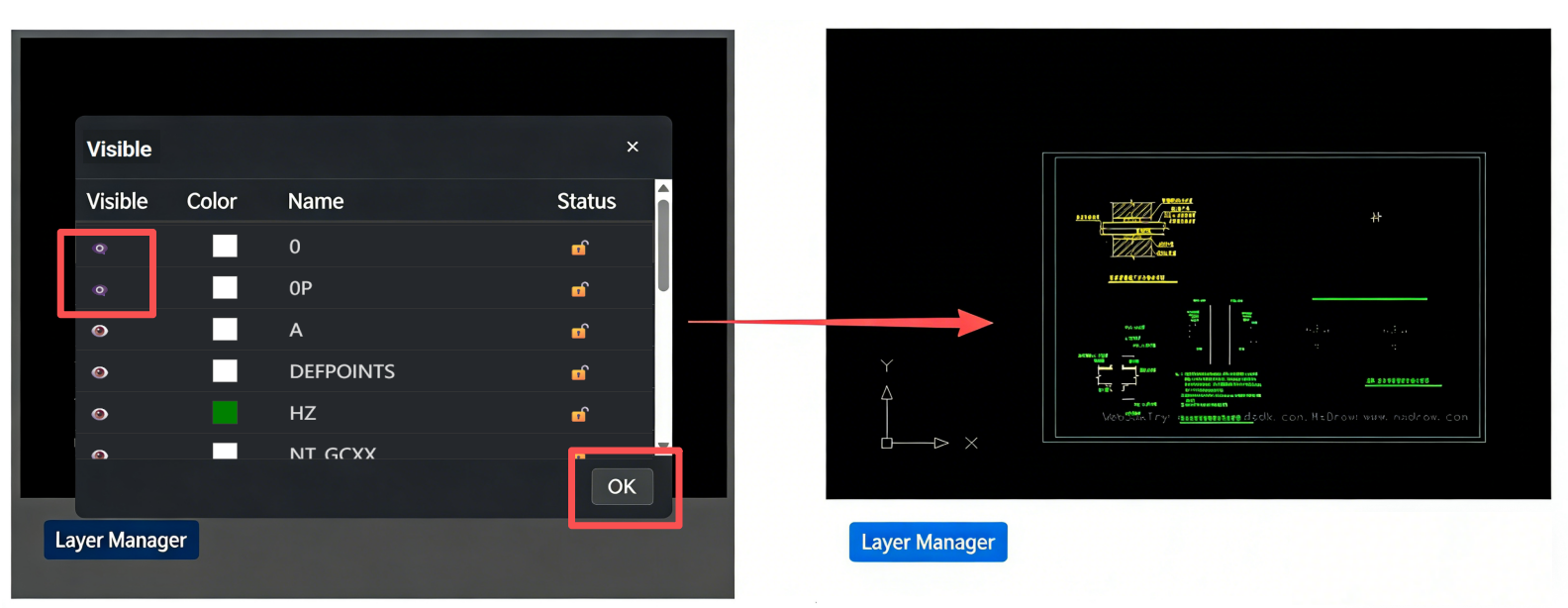
3.1 Manager Entry & State Definition
First, add a "Layer Manager" button to the UI (e.g., toolbar). Clicking this button triggers an asynchronous function to initialize and display the manager modal.
3.2 Manager Modal UI Implementation
The Layer Manager is typically displayed as a modal dialog containing a list area, an action panel, and a property panel.
Code Implementation (Vue3 + TypeScript)
<!-- Interaction Entry Button -->
<button class="layer-btn" @click="showLayerManager">Layer Manager</button>
<!-- Layer Management Modal -->
<div v-if="isModalVisible" class="modal-overlay" @click.self="closeModal">
<div class="modal-content">
<div class="modal-header">
<span class="modal-title">Layer List</span>
<button class="close-btn" @click="closeModal">×</button>
</div>
<!-- Layer Data Table -->
<table class="layer-table">
<thead>
<tr>
<th>Visible</th>
<th>Color</th>
<th>Name</th>
<th>Lock</th>
</tr>
</thead>
<tbody>
<tr v-for="layer in layerList" :key="layer.recordId" class="layer-row">
<!-- Visibility Control -->
<td @click.stop="toggleVisibility(layer)">
<span class="icon">{{ layer.isOff ? '👁️🗨️' : '👁️' }}</span>
</td>
<!-- Color Block -->
<td>
<div class="color-block" :style="{ backgroundColor: layer.colorRgb }"></div>
</td>
<!-- Layer Name -->
<td>{{ layer.name }}</td>
<!-- Lock Control -->
<td @click.stop="toggleLock(layer)">
<span class="icon">{{ layer.isLocked ? '🔒' : '🔓' }}</span>
</td>
</tr>
</tbody>
</table>
<div class="modal-footer">
<button @click="submitLayerChanges">Apply</button>
</div>
</div>
</div>Style Code (CSS)
<style scoped>
/* --- Style Restoration (Dark Theme) --- */
.app-container {
  font-family: "Microsoft YaHei", sans-serif;
  padding: 20px;
}
.layer-btn {
  padding: 8px 16px;
  background: #007bff;
  color: white;
  border: none;
  border-radius: 4px;
  cursor: pointer;
}
.layer-btn:hover { background: #0056b3; }

/* Modal Overlay */
.modal-overlay {
  position: fixed;
  top: 0; left: 0; right: 0; bottom: 0;
  background: rgba(0, 0, 0, 0.7);
  display: flex;
  justify-content: center;
  align-items: center;
  z-index: 1000;
}

/* Modal Content */
.modal-content {
  background: #25282c;
  width: 500px;
  max-height: 70vh;
  border-radius: 8px;
  display: flex;
  flex-direction: column;
}
.modal-header {
  display: flex;
  justify-content: space-between;
  align-items: center;
  padding: 12px 16px;
  border-bottom: 1px solid #383838;
}
.modal-title {
  color: #e0e0e0;
  font-size: 16px;
  font-weight: bold;
}
.close-btn {
  background: none;
  border: none;
  color: #e0e0e0;
  font-size: 18px;
  cursor: pointer;
}
.close-btn:hover { color: #ff5555; }

/* Table Container */
.layer-list-container { flex: 1; overflow-y: auto; }
.layer-table {
  width: 100%;
  border-collapse: collapse;
}
.layer-table th, .layer-table td {
  padding: 8px 12px;
  text-align: left;
  border-bottom: 1px solid #383838;
  color: #e0e0e0;
}

/* Column Width Control */
.col-visible { width: 60px; text-align: center; }
.col-color { width: 60px; text-align: center; }
.col-name { flex: 1; }
.col-status { width: 60px; text-align: center; }

/* Color Block Style */
.color-block {
  width: 20px;
  height: 20px;
  margin: 0 auto;
  border: 1px solid #444;
}

/* Icons */
.icon { font-size: 14px; }

/* Row Style */
.layer-row {
  cursor: pointer;
  transition: background 0.2s;
}
.layer-row:hover { background-color: #383838; }

/* Selected State (Highlight) */
.layer-row-active { background-color: #3c4043; }

/* Footer */
.modal-footer {
  padding: 12px 16px;
  border-top: 1px solid #383838;
  display: flex;
  justify-content: flex-end;
  gap: 10px;
}
button {
  padding: 6px 12px;
  background: #3c4043;
  color: #e0e0e0;
  border: 1px solid #555;
  border-radius: 4px;
  cursor: pointer;
}
button:hover { background: #555; }
</style>
3.3 Layer Data Traversal & Loading
To display all layers, we need to get the layer table (McDbLayerTable) from the database via the MXCAD instance and use getAllRecordId() to iterate through all layer records.
Implementation Logic:
- Get the core instance and layer table object.
- Call
getAllRecordId()to get the array of all layer IDs. - Iterate through the ID array, getting the specific layer record object via
getMcDbLayerTableRecord(). - Map layer attributes to the modal's list component.
Code Example:
const showLayerManager = async () => {
  // 1. Get Database & Layer Table
  const database = MxCpp.getCurrentMxCAD().getDatabase();
  const layerTable = database.getLayerTable();

  // 2. Iterate all Layer IDs
  const allLayerIds = layerTable.getAllRecordId();
  const layers = [];

  for (const id of allLayerIds) {
    const layerRecord = id.getMcDbLayerTableRecord();

    // 3. Extract attributes and convert format (e.g., Color to HEX)
    layers.push({
      name: layerRecord.name,
      colorRgb: layerRecord.color.getStyle(), // Key conversion
      isLocked: layerRecord.isLocked,
      isOff: layerRecord.isOff,
      recordId: id, // Keep ID for subsequent modification
      isChanged: false
    });
  }

  // 4. Bind data and show modal
  layerList.value = layers;
  isModalVisible.value = true;
};
3.4 Core Layer Operations & State Synchronization
This is the core logic of the manager. User operations on the UI modify data markers in memory. Upon clicking "OK", the system iterates through modified layers, writes the new state back to the layer records via MXCAD API, and forces a display refresh.
Code Example:
// Toggle Visibility Logic
const toggleVisibility = (layer) => {
  layer.isOff = !layer.isOff;
  layer.isChanged = true; // Mark as dirty data
};

// Toggle Lock Logic
const toggleLock = (layer) => {
  layer.isLocked = !layer.isLocked;
  layer.isChanged = true; // Mark as dirty data
};

// Commit changes to MXCAD Engine
const submitLayerChanges = () => {
  layerList.value
    .filter(layer => layer.isChanged) // Filter modified layers
    .forEach(layer => {
      const record = layer.recordId.getMcDbLayerTableRecord();
      record.isOff = layer.isOff;     // Write visibility
      record.isLocked = layer.isLocked; // Write lock status
    });

  // Key: Notify engine to update display state
  const mxcad = MxCpp.getCurrentMxCAD();
  mxcad.updateLayerDisplayStatus(); // Update layer state
  mxcad.updateDisplay();            // Redraw view
  isModalVisible.value = false;
};
4. Advanced Layer Features
To achieve a fully functional layer manager, we need to add deep layer operations and search filtering logic. The overall implementation effect is shown in the following figure.
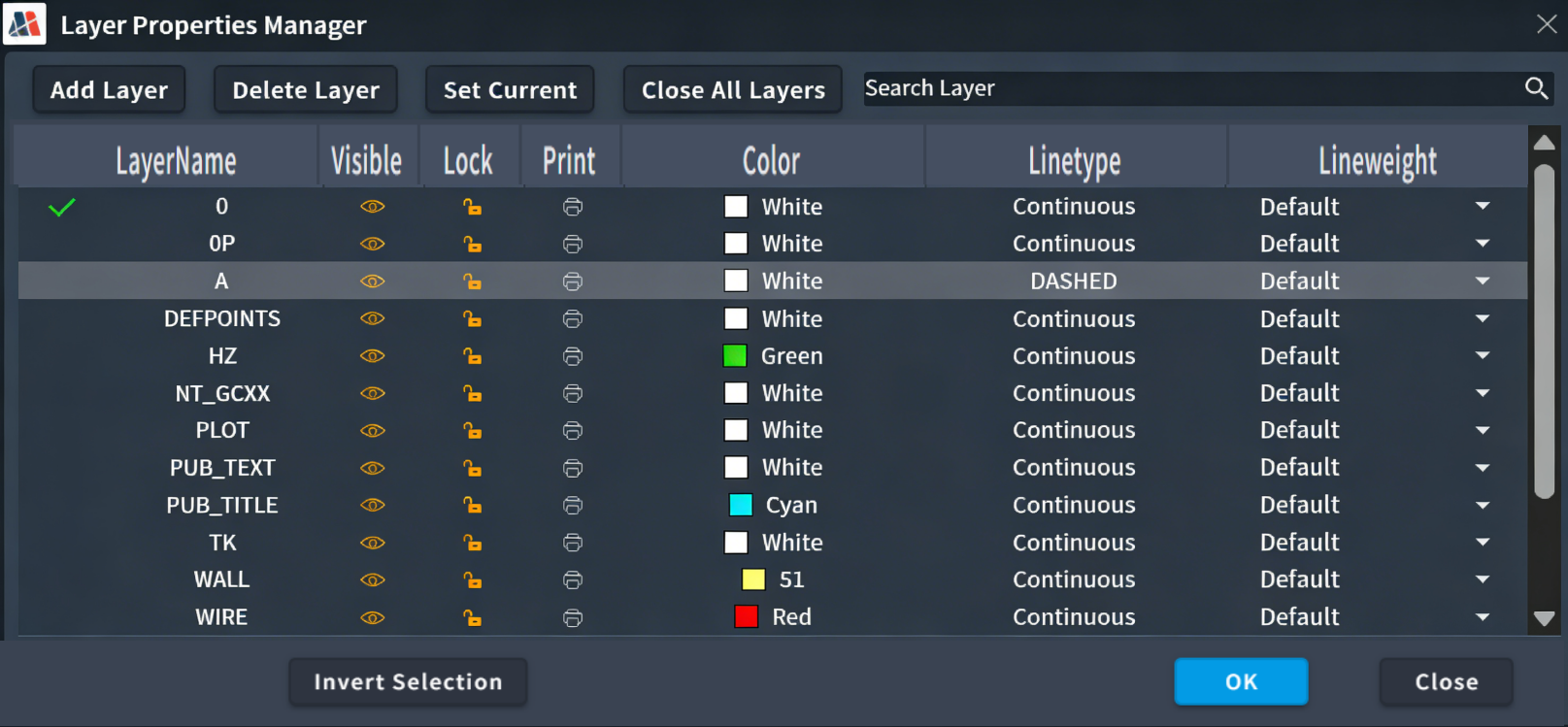
4.1 Deep Layer Operations
1. New Layer
- Function: Creates a new layer record in the layer table.
- Logic: Calls the
addLayer(name)method.
import { McCmColor, MxCpp, McDbLayerTableRecord, McDb } from "mxcad"

// Get current control
const mxcad = MxCpp.getCurrentMxCAD();
// Instantiate a layer data object
const layer = new McDbLayerTableRecord();
layer.color = new McCmColor(0, 0, 0);
layer.isFrozen = true;
layer.isLocked = true;
layer.isOff = true;
layer.lineWeight = McDb.LineWeight.kLnWt018;
layer.name = "New Layer";

// Get the database layer table of the current control and add
const layerTable = mxcad.getDatabase().getLayerTable();
const objId = layerTable.add(layer);

// Update display
mxcad.updateLayerDisplayStatus();
2. Delete Layer
- Function: Deletes the selected layer.
- Logic: Gets the layer ID of the selected row and calls the
erase()method. Note: Cannot delete the current layer or layers containing entities.
import { MxCpp } from "mxcad"

let layerTable = MxCpp.getCurrentMxCAD().getDatabase().getLayerTable();
let layerId = layerTable.get("Layer Name");
let layerRec = layerId.getMcDbLayerTableRecord();
layerRec.erase(); // Delete layer

// Update display
mxcad.updateDisplay();
3. Set Current
- Function: Sets the selected layer as the current drawing layer.
- Logic: Gets the name of the selected layer and calls
setCurrentlyLayerId().
import { MxCpp } from "mxcad"

const mxcad = MxCpp.getCurrentMxCAD();
let layerTable = mxcad.getDatabase().getLayerTable();
let layerId = layerTable.get("Layer Name");
mxcad.getDatabase().setCurrentlyLayerId(layerId);
4. Turn Off All
- Function: Batch operation to set all layers except "0" to invisible.
- Logic: Iterates through
layerList, callinglayer.isOff = truefor each.
import { MxCpp } from "mxcad"

let layerTable = MxCpp.getCurrentMxCAD().getDatabase().getLayerTable();
let aryId = layerTable.getAllRecordId();
aryId.forEach((id) => {
  let layerRec = id.getMcDbLayerTableRecord();
  // Filter out 0 layer or other logic
  if (layerRec.name !== "0") {
    layerRec.isOff = true;
  }
});
4.2 Search & Filter
- Logic: Listens to the
inputevent of the search box and filters thelayerListdata source based on the input value.
// Variable bound to search box
const searchKeyword = ref('');

// Computed property: Filter layer list based on search keyword
const filteredLayers = computed(() => {
  if (!searchKeyword.value) return layerList;
  const keyword = searchKeyword.value.toLowerCase();
  return layerList.filter(layer =>
    layer.name.toLowerCase().includes(keyword)
  );
});
5. Conclusion
This article has detailed the technical path for implementing a professional-grade View Control and Layer Management system based on MxCAD. By deeply utilizing the McDbLayerTable data structure and transaction mechanisms, we successfully implemented a full suite of features including state toggling, attribute editing, and batch operations.
Key Value Points Recap:
- Data-Driven: Strictly follows CAD database reference mechanisms to ensure data consistency.
- Transaction Safety: All write operations are performed under transaction protection to ensure system stability.
- User Experience: Provides a smooth operation feel close to native desktop through coordinate conversion and event mapping.
- Extensibility: Modular design supports easy expansion of advanced features like layer filters and state saving.
This solution not only meets basic drawing viewing needs but also lays a solid interaction and data foundation for subsequent deep secondary development (such as custom drawing commands, business data binding). Developers can use this framework to further customize layer management tools that meet specific industry standards.