
MxDraw Cloud Map Development Kit Drawing Conversion Function Usage Guide
I. Pre-conversion Preparation: Download the Latest Cloud Map Development Kit
Drawing format conversion relies on the MxDraw Cloud Map Development Kit. Please download the corresponding version based on your operating system:
Windows Version:
Linux X86_64 Version:
If you are not yet familiar with the structure of the Cloud Map Development Kit, you can view the Cloud Map Development Kit Instructions. This document details the structure and functions of the development kit, helping you get started with the drawing conversion function faster.
II. Core Principle of Drawing Conversion
The drawing conversion capability of the MxDraw Cloud Map Development Kit relies primarily on the MxCAD drawing conversion program located in the Bin directory within the kit (Bin/MxCAD for Windows systems, Bin/Linux/MxCAD for Linux systems). All drawing conversion operations, regardless of the invocation method used, essentially trigger this conversion program to execute format processing logic.
The development kit adapts the deployment path of the conversion program for different operating systems (Windows/Linux) (e.g., adding a Linux subdirectory for Linux), and Linux systems require additional permission configuration for the conversion program, but the core invocation logic remains consistent across platforms.
III. Supported Scope for Drawing Conversion
The conversion program of the MxDraw Cloud Map Development Kit supports multi-format interconversion, and all format conversions allow custom specification of the drawing conversion range. Supported conversion formats include:
Source/Target Formats: DWG, DXF, MXWEB (MxCAD proprietary format, improves online loading speed), PDF, JPG.
IV. Two Implementation Methods for Drawing Conversion
Method 1: Direct Command Line Invocation of the Conversion Program
1. Prerequisites
Windows System: Directly navigate to the
MxDrawCloudServer/Bin/MxCADdirectory (the path where the conversion program is located).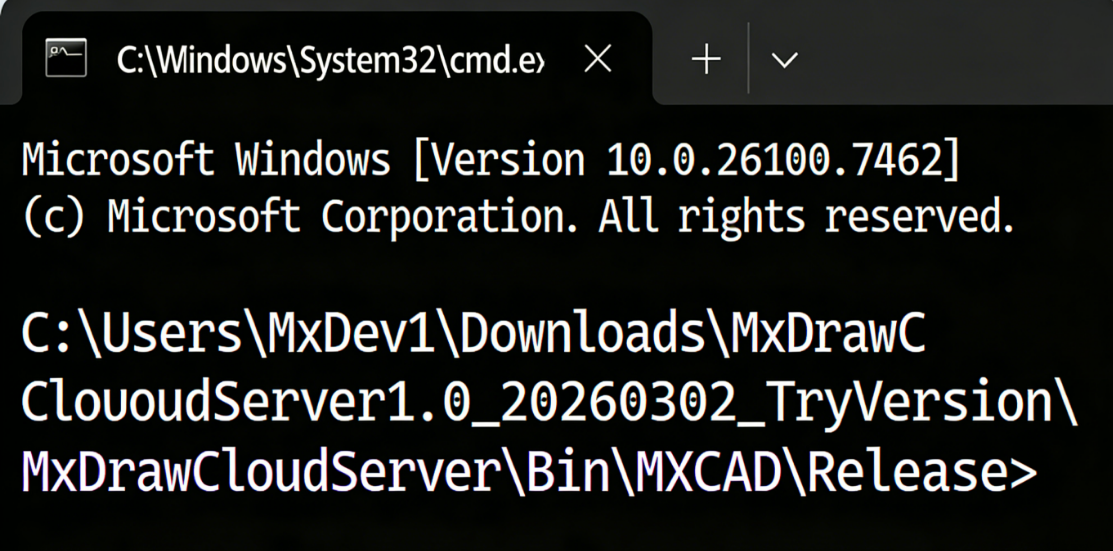
Linux System:
Navigate to the
MxDrawCloudServer/Bin/Linux/MxCADdirectory.Execute permission configuration commands to grant executable permissions to the conversion program:
bashsudo chmod -R 777 mxcadassembly sudo chmod -R 777 ./mx/so/* sudo cp -r -f ./mx/locale /usr/local/share/locale(Note: You can directly refer to
LinuxDemo Startup Instructions.txtinside the development kit)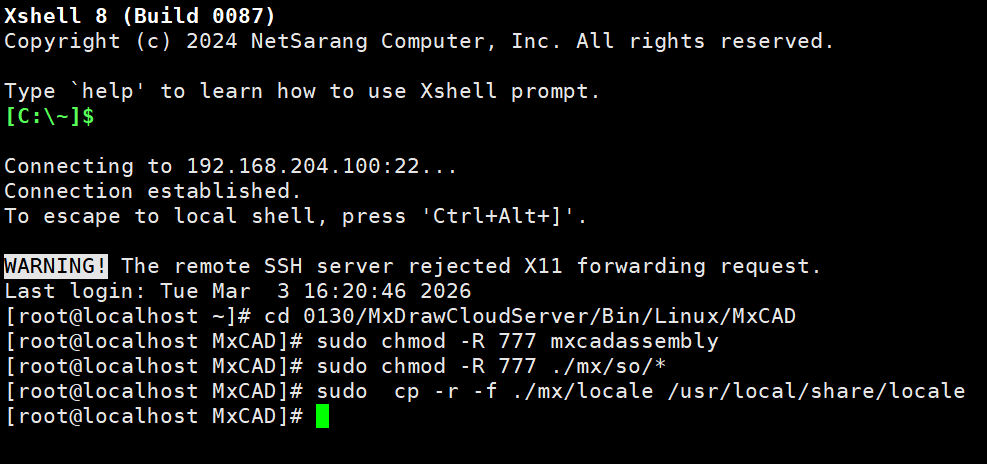
2. Invocation Method
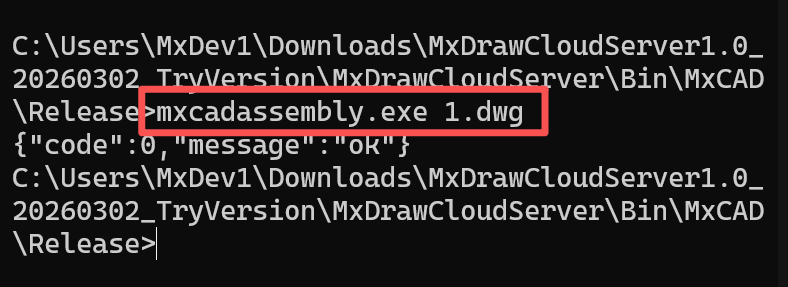
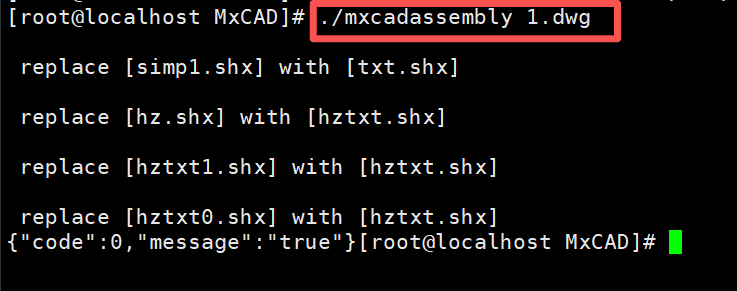
After entering the directory where the conversion program is located in the command line terminal (Windows: CMD/PowerShell; Linux: Shell), execute the corresponding conversion command. For specific conversion commands, please refer to the section below: V. Detailed Explanation of File Format Conversion Commands
Windows:
Linux:
Method 2: Invoke the Port 1337 Conversion Interface
1. Prerequisites
Start the CAD core engine service of the Cloud Map Development Kit to ensure the port 1337 service is running normally:
Windows System: Double-click
MxDrawCloudServer/Mx3dServer.exe, click "Start Web Service", which automatically starts the CAD core engine service for port 1337 (driven byBin/MxDrawServer/Windows/app.js).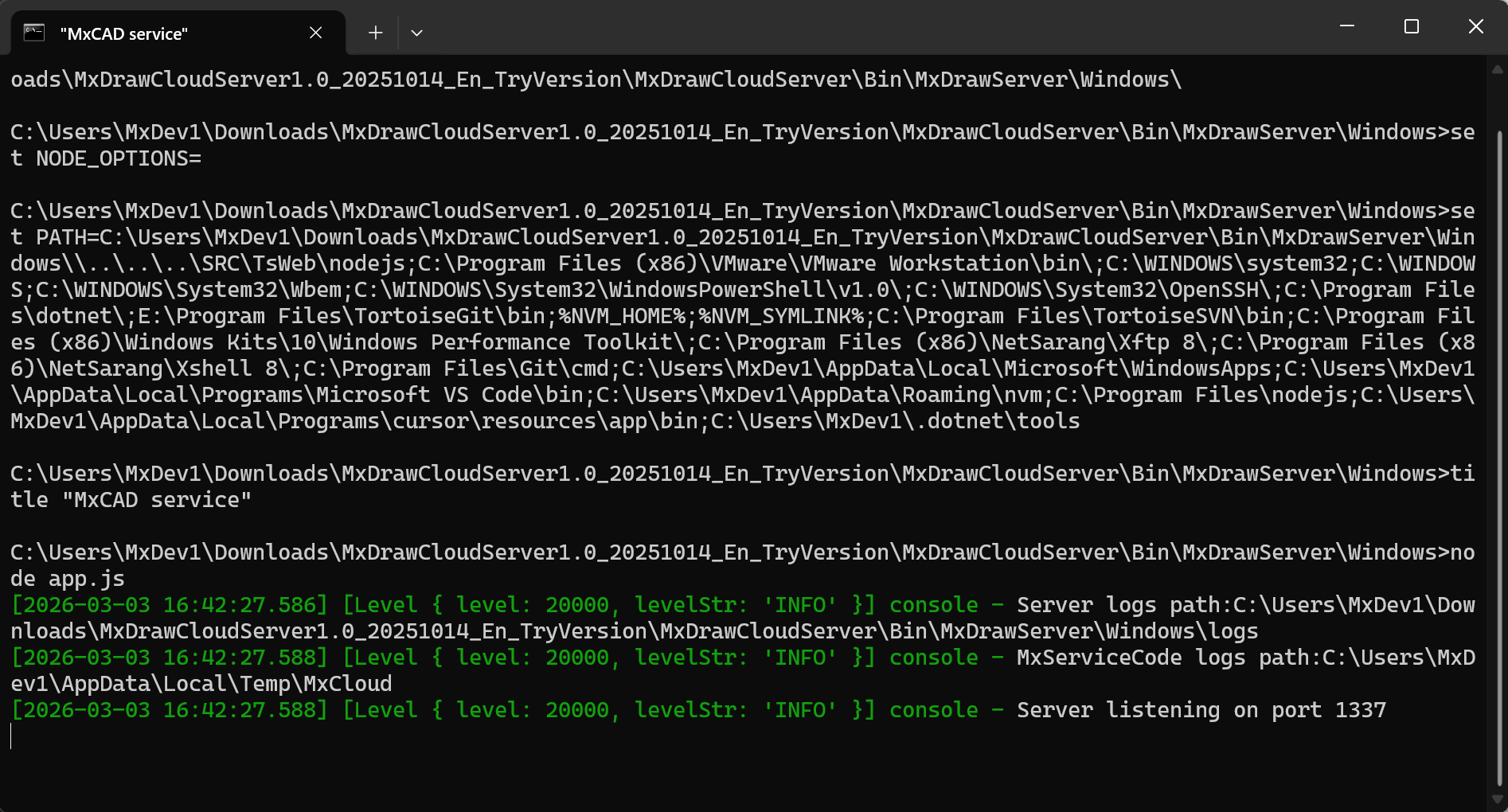
Linux System: Execute the startup script to start the port 1337 service:
bash./start_demo.sh(The script will automatically start the CAD core service on port 1337 and the Web service on port 3000)

2. Interface Invocation Method
Call the drawing conversion interface at http://localhost:1337/mxcad/convert on port 1337 via HTTP request. Core interface parameters include source file path/URL, target format, conversion range, etc. It supports POST/GET invocation methods (POST is recommended). For specific interface parameter settings, please refer to the section below: V. Detailed Explanation of File Format Conversion Commands
Basic Invocation Example (HTTP POST)
Windows:
javascriptvar data = { srcpath:"D:/Test/123.dwg", outname:"123.mxweb" }; axios({ method: "post", url: "http://localhost:1337/mxcad/convert", data }).then((ret) => { console.log(ret.data) alert(JSON.stringify(ret.data)) }).catch((err)=>{alert("Network Error") })Linux:
bashcurl -X POST http://localhost:1337/mxcad/convert \ -H "Content-Type: application/json" \ -d '{"srcpath":"/home/user/test/123.dwg","outname":"123.mxweb","outpath":"/home/user/output"}'
Convenient Interface Testing Method
You can directly call the conversion interface through the visual test page provided by the development kit:
- Ensure the port 1337 service is started.
- Open a browser and visit
http://localhost:1337/servertest. - Find the "DWG Conversion" related test module on the page, select the source file, target format, and conversion range, then click "Run" to trigger the conversion.
Regardless of whether the command line or interface invocation method is used, both are based on the same set of conversion programs, ensuring consistency in conversion logic, format support, and range control:
- Command Line Method: Suitable for batch offline conversion and automated script integration.
- Port 1337 Interface Method: Suitable for online business system integration, supporting remote invocation by front-end/third-party services without directly operating the underlying program.
V. Detailed Explanation of File Format Conversion Commands
Based on the overall style of the document (clear hierarchy, code block differentiation, table parameter descriptions, concise technical language), the content regarding "DWG, DXF to MXWEB" has been formatted and linguistically optimized for better readability and consistency with the rest of the text.
1. DWG, DXF to MXWEB
Supports converting AutoCAD standard formats (.dwg, .dxf) to MxCAD's proprietary Web format (.mxweb) to improve loading and rendering speed of drawings in the cloud.
(1) Direct Command Line Invocation
① Default Conversion (Fast Mode) If no specific path is specified, the program will automatically read files with the same name in the directory parallel to the conversion program.
Output Naming: Original filename +
.mxweb(e.g.,1.dwg→1.dwg.mxweb)Output Location: Same directory as the source file
Windows:
bash# Convert DWG file mxcadassembly.exe 1.dwg # Convert DXF file mxcadassembly.exe 1.dxfLinux:
bash# Convert DWG file ./mxcadassembly 1.dwg # Convert DXF file ./mxcadassembly.exe 1.dxf
② Custom Conversion (Advanced Mode) Supports specifying source file path, output directory, and filename, and allows control over compression strategy.
Output Naming: If no extension is written,
.mxwebis added by default;.mxwebextension can also be manually specified.Windows:
bashmxcadassembly.exe {"srcpath":"D:\test2.dwg","outpath":"D:\test","outname":"test", "compression":0}Linux:
bash./mxcadassembly '{"srcpath":"/home/user/test2.dwg","outpath":"/home/user/test","outname":"test", "compression":0}'
Parameter Description:
| Parameter | Description |
|---|---|
srcpath | Full path of the source file to be converted |
outpath | Target path for the output file (if empty, defaults to the same directory as the source file) |
outname | Output filename (Note: Explicit extension required when converting MXWEB to CAD) |
compression | Compression control: 0 means no compression; if this attribute is not passed, compression is performed by default |
(2) Interface Invocation Method
Call the conversion service on local port 1337 via HTTP POST request.
Request Example:
Windows:
javascriptvar data = { srcpath: "C:/test/a.dwg", outname: "123.mxweb", outpath: "E:/" }; axios({ method: "post", url: "http://localhost:1337/mxcad/convert", data: data }).then((ret) => { console.log(ret.data); alert(JSON.stringify(ret.data)); }).catch((err) => { alert("Network Error"); });Linux:
bashcurl -X POST "http://localhost:1337/mxcad/convert " \ -H "Content-Type: application/json " \ -d '{ "srcpath ": "XXX/a.dwg ", "outname ": "123.mxweb ", "outpath ": "XXX " }'
2. MXWEB to DWG, DXF
Supports reverse converting MxCAD Web format (.mxweb) back to AutoCAD standard formats (.dwg or .dxf) for secondary editing or archiving in local CAD software.
(1) Direct Command Line Invocation
Specify source file, output path, and target filename via JSON parameters. Note: The output filename must explicitly include the .dwg or .dxf extension to determine the target conversion format.
Windows:
bash# Convert to DWG format mxcadassembly.exe { "srcpath ": "D:\test.mxweb ", "outpath ": "D:\ ", "outname ": "test.dwg "} # Convert to DXF format mxcadassembly.exe { "srcpath ": "D:\test.mxweb ", "outpath ": "D:\ ", "outname ": "test.dxf "}Linux:
bash# Convert to DWG ./mxcadassembly '{ "srcpath ": "/home/user/data/test.mxweb ", "outpath ": "/home/user/data/ ", "outname ": "test.dwg "}' # Convert to DXF ./mxcadassembly '{ "srcpath ": "/home/user/data/test.mxweb ", "outpath ": "/home/user/data/ ", "outname ": "test.dxf "}'
Key Parameter Description:
srcpath: Path of the.mxwebsource file to be converted.outpath: Save directory for the converted file.outname: Must include extension (e.g.,test.dwg); the program will automatically identify the target conversion format based on the extension.
(2) Interface Invocation Method
Perform format reversal by calling the local service via HTTP POST request.
Request Example:
Windows:
javascriptvar data = { srcpath: "D:/Test/123.mxweb", outname: "123new.dwg", // Specify output as .dwg format outpath: "D:/" }; axios({ method: "post", url: "http://localhost:1337/mxcad/convert", data: data }).then((ret) => { console.log(ret.data); alert(JSON.stringify(ret.data)); }).catch((err) => { alert("Network Error"); });Linux:
bashcurl -X POST "http://localhost:1337/mxcad/convert " \ -H "Content-Type: application/json " \ -d '{ "srcpath ": "XXX/123.mxweb ", "outname ": "123new.dwg ", "outpath ": "XXX " }'
Tip: Unlike "DWG to MXWEB", this process must explicitly specify the .dwg or .dxf extension in outname, otherwise the format conversion cannot be completed.
3. DWG to PDF
Supports directly converting AutoCAD drawings (.dwg) to Portable Document Format (.pdf), suitable for drawing preview, print archiving, and sharing in non-CAD environments. Supports custom output resolution and color strategies.
(1) Direct Command Line Invocation
Configure source file, output name, image dimensions, and color mode via JSON parameters.
Windows:
bashmxcadassembly.exe {'srcpath':'C:/test/1.dwg','outname':'1.pdf','width':'5000','height':'5000','colorPolicy':'mono','exportLayout':'false','outpath':'C:/'}Linux:
bash./mxcadassembly '{ "srcpath ": "/absolute/path/to/1.dwg ", "outname ": "1.pdf ", "width ": "5000 ", "height ": "5000 ", "colorPolicy ": "mono ", "exportLayout ": "false ", "outpath":"XXX/XXX/"}'
Parameter Description:
| Parameter | Description |
|---|---|
srcpath | Path of the .dwg source file to be converted |
outpath | Target path for the output file (if empty, defaults to the same directory as the source file) |
outname | Output filename (must include .pdf extension) |
width | Width of the output PDF (pixels) |
height | Height of the output PDF (pixels) |
colorPolicy | Color strategy: mono indicates black and white; if not set, defaults to Color |
exportLayout | Whether to export layout space; if not set, defaults to Export |
Note: If colorPolicy is not set, the generated PDF will retain the original image colors; setting it to mono generates a black-and-white grayscale drawing, often used in engineering printing to save toner.
(2) Interface Invocation Method
Call the local service via HTTP POST request, supporting more flexible dynamic parameter configuration (such as layout export control, etc.).
Request Example:
Windows:
javascriptvar data = { srcpath: "C:/test/123.dwg ", outpath: "C:/ ", // Output directory outname: "123.pdf ", // Output filename width: "2000 ", // Custom width height: "2000 ", // Custom height // colorPolicy: "mono ", // Optional: Uncomment to enable black and white mode // exportLayout: "false " // Optional: Control whether to export layout space }; axios({ method: "post ", url: "http://localhost:1337/mxcad/convert ", data: data }).then((ret) => { console.log(ret.data); alert(JSON.stringify(ret.data)); }).catch((err) => { alert( "Network Error "); });Linux:
bashcurl -X POST "http://localhost:1337/mxcad/convert " \ -H "Content-Type: application/json " \ -d '{ "srcpath ": "XXX/XXX/123.dwg ", "outpath ": "XX/ ", "outname ": "123.pdf ", "width ": "2000 ", "height ": "2000 " }'
Tip: When calling the interface, colorPolicy and exportLayout are optional parameters. If a black and white PDF is needed, please uncomment colorPolicy: "mono".
4. DWG and DXF Interconversion
This function supports bidirectional lossless conversion between two mainstream AutoCAD formats:
- DWG to DXF: Converts binary DWG files to text or binary DXF format, facilitating cross-platform data exchange.
- DXF to DWG: Restores DXF files to standard DWG format to optimize storage volume and loading performance.
(1) Direct Command Line Invocation
Automatically identify the conversion direction via the extension (.dxf or .dwg) of the outname parameter.
Windows:
bash# DWG to DXF mxcadassembly.exe { "srcpath ": "D:\test.dwg ", "outpath ": "D:\ ", "outname ": "test.dxf "} # DXF to DWG mxcadassembly.exe { "srcpath ": "D:\test.dxf ", "outpath ": "D:\ ", "outname ": "test.dwg "}Linux:
bash# DWG to DXF ./mxcadassembly '{ "srcpath ": "/home/user/data/test.dwg ", "outpath ": "/home/user/data/ ", "outname ": "test.dxf "}' # DXF to DWG ./mxcadassembly '{ "srcpath ": "/home/user/data/test.dxf ", "outpath ": "/home/user/data/ ", "outname ": "test.dwg "}'
Operation Logic:
- The program reads the source file specified by
srcpath. - Determines the target format based on the extension filled in
outname. - Saves the result to the directory specified by
outpath(if empty, saves in the same directory as the source file).
(2) Interface Invocation Method
Supports flexible conversion via HTTP POST request; outpath is an optional parameter.
Windows:
javascriptvar data = { srcpath: "D:/Test/123.dwg", outname: "123.dxf", // Change extension to change conversion direction outpath: "D:/" // Specify output directory }; axios({ method: "post", url: "http://localhost:1337/mxcad/convert", data: data }).then((ret) => { console.log(ret.data); alert(JSON.stringify(ret.data)); }).catch((err) => { alert("Network Error"); });Linux:
bashcurl -X POST "http://localhost:1337/mxcad/convert " \ -H "Content-Type: application/json " \ -d '{ "srcpath ": "XXX/123.dwg ", "outname ": "123.dxf ", "outpath ": "XXX/ " }'
Tip: The conversion direction is entirely determined by the extension of outname. If the source file is .dwg and the outname extension is .dxf, DWG to DXF is executed; vice versa.
5. Specify Range to Crop DWG
This function supports cropping graphic content within a specified rectangular range from the original DWG drawing and generating a new independent DWG file. Suitable for extracting local details of drawings, creating detail drawings, or splitting oversized drawings.
(1) Direct Command Line Invocation
Specify the mode as cut_dwg via the cmd parameter, and define the coordinates of the two diagonal points (pt1_x, pt1_y) and (pt2_x, pt2_y) of the cropping area.
Windows:
bashmxcadassembly.exe {'cmd':'cut_dwg','bd_pt1_x':'1000','bd_pt1_y':'1200','bd_pt2_x':'1400','bd_pt2_y':'1400','srcpath':'1.dwg','outname':'testcut_1.dwg'}Linux:
bash./mxcadassembly '{ "cmd ": "cut_dwg ", "bd_pt1_x ": "1000 ", "bd_pt1_y ": "1200 ", "bd_pt2_x ": "1400 ", "bd_pt2_y ": "1400 ", "srcpath ": "/home/user/test/1.dwg ", "outname ": "/home/user/test/testcut_1.dwg "}'
Parameter Description:
| Parameter | Description |
|---|---|
cmd | Fixed value: cut_dwg, used to trigger the crop command |
srcpath | Path of the source DWG file to be cropped |
outname | Output filename (must include .dwg extension) |
outpath | Output directory (if not filled, defaults to srcpath directory) |
bd_pt1_x | X coordinate of the Top-Left/Start Point of the crop area |
bd_pt1_y | Y coordinate of the Top-Left/Start Point of the crop area |
bd_pt2_x | X coordinate of the Bottom-Right/End Point of the crop area |
bd_pt2_y | Y coordinate of the Bottom-Right/End Point of the crop area |
Note: Coordinate values are based on the current coordinate system units of the drawing. Ensure pt1 and pt2 can constitute a valid rectangular area.
(2) Interface Invocation Method
Send cropping parameters encapsulated in the JSON data body via HTTP POST request.
Request Example:
Windows:
javascriptvar data = { cmd: "cut_dwg ", // Command type bd_pt1_x: "1000 ", // Start X bd_pt1_y: "1200 ", // Start Y bd_pt2_x: "1400 ", // End X bd_pt2_y: "1400 ", // End Y srcpath: "1.dwg ", // Source file path outname: "testcut_2.dwg " // Output filename // outpath: "D:/output/ " // Optional: Specify output directory }; axios({ method: "post ", url: "http://localhost:1337/mxcad/convert ", data: data }).then((ret) => { console.log(ret.data); alert(JSON.stringify(ret.data)); }).catch((err) => { alert( "Network Error "); });Linux:
bashcurl -X POST "http://localhost:1337/mxcad/convert " \ -H "Content-Type: application/json " \ -d '{ "cmd ": "cut_dwg ", "bd_pt1_x ": "1000 ", "bd_pt1_y ": "1200 ", "bd_pt2_x ": "1400 ", "bd_pt2_y ": "1400 ", "srcpath ": "XXX/1.dwg ", "outname ": "testcut_2.dwg ", "outpath ": "XXX/ " }'
Tip: This operation retains only entities within the rectangular frame; content outside the frame will be removed. The generated new file will inherit attributes such as layers and block definitions from the original file.
6. Specify Range to Output PDF
This function supports directly printing/exporting content from a specified rectangular area of a DWG drawing to a PDF file. Unlike "Full Drawing to PDF", this function allows users to precisely control the output range via coordinates, and customize output paper size and color mode. It is very suitable for creating local detail drawings or presentation drawings for specific areas.
(1) Direct Command Line Invocation
Specify the mode as print_to_pdf via the cmd parameter, combine with coordinate parameters to define the cropping area, and set the width, height, and color strategy of the output PDF.
Windows:
bashmxcadassembly.exe {'cmd':'print_to_pdf','width':'2100','height':'2970','bd_pt1_x':'1000','bd_pt1_y':'1200','bd_pt2_x':'1400','bd_pt2_y':'1400','srcpath':'D:/Test/testprint.dwg','outname':'testprint.pdf','colorPolicy':'mono', 'outpath':'D:/'}Linux:
bash./mxcadassembly '{ "cmd ": "print_to_pdf ", "width ": "2100 ", "height ": "2970 ", "bd_pt1_x ": "1000 ", "bd_pt1_y ": "1200 ", "bd_pt2_x ": "1400 ", "bd_pt2_y ": "1400 ", "srcpath ": "/home/user/Test/testprint.dwg ", "outname ": "testprint.pdf ", "colorPolicy ": "mono ", "outpath ": "/home/user/Test/ "}'
Parameter Description:
| Parameter | Description |
|---|---|
cmd | Fixed value: print_to_pdf, triggers the specified range print command |
srcpath | Source DWG file path |
outname | Output filename (must include .pdf extension) |
outpath | Output directory |
bd_pt1_x / bd_pt1_y | Start Point coordinates of the crop area |
bd_pt2_x / bd_pt2_y | End Point coordinates of the crop area |
width | Width of the output PDF page (pixels or units, depending on configuration) |
height | Height of the output PDF page |
colorPolicy | Color strategy: mono (Black and White), defaults to Color if not filled |
Note:
widthandheightdetermine the physical size ratio of the generated PDF page. Please set according to actual plotting requirements (e.g., A4: 2100x2970, A3: 2970x4200, etc.).- The coordinate range
(pt1, pt2)must be within the valid drawing area of the drawing.
(2) Interface Invocation Method
Send JSON data containing cropping range and print parameters via HTTP POST request.
Request Example:
Windows:
javascriptvar data = { cmd: "print_to_pdf ", // Command type width: "2100 ", // Output page width height: "2970 ", // Output page height bd_pt1_x: "1000 ", // Crop Start X bd_pt1_y: "1200 ", // Crop Start Y bd_pt2_x: "1400 ", // Crop End X bd_pt2_y: "1400 ", // Crop End Y srcpath: "1.dwg ", // Source file path outname: "testprint.pdf ", // Output filename colorPolicy: "mono ", // Black and white mode // outpath: "D:/ " // Optional: Specify output directory, defaults to source file directory if not filled }; axios({ method: "post ", url: "http://localhost:1337/mxcad/convert ", data: data }).then((ret) => { console.log(ret.data); alert(JSON.stringify(ret.data)); }).catch((err) => { alert( "Network Error "); });Linux:
bashcurl -X POST "http://localhost:1337/mxcad/convert " \ -H "Content-Type: application/json " \ -d '{ "cmd ": "print_to_pdf ", "width ": "2100 ", "height ": "2970 ", "bd_pt1_x ": "1000 ", "bd_pt1_y ": "1200 ", "bd_pt2_x ": "1400 ", "bd_pt2_y ": "1400 ", "srcpath ": "/XXX/1.dwg ", "outname ": "testprint.pdf ", "colorPolicy ": "mono ", "outpath ": "/XXX/ " }'
Application Scenarios:
- Local Plotting: Only need to print a certain detail node in the drawing, no need to manually set viewports in CAD.
- Batch Slicing: Combined with script loop calls, a single oversized drawing can be automatically cut into multiple standard-sized PDFs by coordinate grid.
- Standardized Output: Forcefully specify
widthandheightto ensure all output PDF page sizes are uniform, facilitating subsequent binding or archiving.
7. DWG to JPG (Windows Only)
This function is used to convert DWG drawings to high-resolution JPG images.
Important Note: This function is only supported on Windows operating systems. Before use, you must manually download and deploy an additional conversion tool package, otherwise the interface call will fail.
(1) Prerequisites: Tool Deployment
Before calling the interface, please ensure the following environment configuration is completed:
Download Tool Package: Visit the address to download
Bin_Release_tool.7z: http://www.mxdraw3d.com/download/Bin_Release_tool.7zDeployment Path:
Extract the downloaded compressed package to obtain the
toolfolder.Place this
toolfolder into the specified directory of the Cloud Map Development Kit:MxDrawCloudServer\Bin\Release\toolFinal Directory Structure Example:
textMxDrawCloudServer/ └── Bin/ └── Release/ └── tool/ <-- This folder and internal files must exist ├── MxWebTool.exe └── ...Note: If the
MxDrawCloudServer\Bin\Releasedirectory does not exist, please create it manually.
(2) Direct Command Line Invocation
After the deployment is completed, enter the MxDrawCloudServer\Bin\Release\tool directory in the command line terminal and execute the following command:
MxWebDwg2Jpg.exe cadtojpg "file=D:/Test/2.dwg" "width=1000" "height=1000"(3) Interface Invocation Method
After deployment, call the users/tools interface via HTTP POST request. Parameters need to be concatenated in a specific string format in the param field.
Request Example:
var data = {
   cmd: "cadtojpg",
   // Parameter Description:
   // file: Source DWG file path
   // width: Output image width (pixels), set to 0 to calculate automatically based on height
   // height: Output image height (pixels), set to 0 to calculate automatically based on width
   // background_color: Background color (Hex RGB), 0xFFFFFF is white
   // out: Full path of the output JPG file
   param: "file=D:/Test/1.dwg width=1000 height=0 background_color=0xFFFFFF out=D:/Test/test.jpg"
};

axios({
   method: "post",
   url: "http://localhost:1337/users/tools", // Note this URL is different from other conversion interfaces
   data: data
}).then((ret) => {
   console.log(ret.data);
   alert(JSON.stringify(ret.data));
}).catch((err) => {
   alert("Network Error");
});
Parameter Details (within param string):
| Parameter Key | Description |
|---|---|
file | Absolute path of the input .dwg file |
width | Width of the output image (pixels). If set to 0, it scales automatically based on height. |
height | Height of the output image (pixels). If set to 0, it scales automatically based on width. |
background_color | Background fill color, using 6-digit hexadecimal RGB value |
out | Full save path (including filename) of the output .jpg file |
Common Troubleshooting:
- If an error message returns stating the tool cannot be found or the command failed, first check if the extracted files are correctly placed in the
MxDrawCloudServer\Bin\Release\tooldirectory. - Ensure the runtime environment is Windows; this function is unavailable under Linux or macOS.
- It is recommended to use forward slashes
/or double backslashes\\in paths to avoid escaping issues.
Supplementary Note: MXWEB Format Support
All the above functions (including full drawing conversion, format interconversion, specified range cropping/printing) fully support the MXWEB format.
Operation Principle: MXWEB is MxCAD's lightweight Web format. When using command line or interface invocation, there is no need to change any command logic or parameter structure. Simply point the input file path (srcpath) to a .mxweb file and modify the extension of the output filename (outname) to the corresponding target format.
1. General Rules for MXWEB Participation in Conversion
| Scenario | Input File (srcpath) | Output File (outname) | Description |
|---|---|---|---|
| MXWEB to PDF | xxx.mxweb | xxx.pdf | Directly convert lightweight format to print document |
| MXWEB to DWG | xxx.mxweb | xxx.dwg | Restore to standard CAD binary format |
| MXWEB to DXF | xxx.mxweb | xxx.dxf | Convert to exchange format |
| MXWEB Range Crop | xxx.mxweb | cut_xxx.mxweb | Perform local extraction on lightweight file |
| MXWEB Range to PDF | xxx.mxweb | part_xxx.pdf | Capture local area of lightweight file to PDF |
2. Example Demonstrations
Example A: MXWEB to PDF (Full Drawing) Simply change the source file extension to .mxweb and the output extension to .pdf.
# Command Line
mxcadassembly.exe {'srcpath':'C:/test/model.mxweb','outname':'model.pdf','width':'5000','height':'5000'}
Example B: MXWEB Specified Range to PDF Keep the command cmd as print_to_pdf, coordinate logic remains unchanged, only file extensions change.
// Interface Call
var data = {
   cmd:  "print_to_pdf ",
   srcpath:  "D:/Test/web_model.mxweb ",  // Input MXWEB
   outname:  "web_part.pdf ",             // Output PDF
   bd_pt1_x:  "1000 ", bd_pt1_y:  "1200 ",
   bd_pt2_x:  "1400 ", bd_pt2_y:  "1400 ",
   width:  "2100 ", height:  "2970 ",
   colorPolicy:  "mono "
};
// ... axios request code same as above ...
Example C: DWG to MXWEB (As Intermediate Format) Also applies to format interconversion logic.
# Command Line
mxcadassembly.exe {"srcpath":"D:\draw.dwg","outpath":"D:\","outname":"draw.mxweb"}
Summary: The system backend performs unified abstract processing for .dwg, .dxf, and .mxweb. When performing any conversion or cropping operation, users only need to focus on changes in file extensions; all other parameters (such as coordinates, dimensions, color strategies, command words) remain consistent without requiring additional configuration.
VI. Cross-Platform Considerations
- Conversion Program Path: Windows uses
Bin/MxCADdirectly; Linux must locateBin/Linux/MxCAD. - Linux Permissions: Linux systems must complete executable permission configuration for the conversion program, otherwise it cannot be called.
- Parameter Consistency: Conversion parameter formats for both invocation methods are cross-platform universal; specify only according to actual needs.
- Firewall: After starting the port 1337 service, ensure the firewall allows traffic on this port to avoid interface call failures.